How to Manage Featured Content Sections
Product: Muvi OneHow to Add Manual Featured Section
Change the Content Order in the Manual Featured Section
How to Add Automatic Featured Section
How to Delete Featured Section
Introduction
You can create different featured sections to display your featured video and audio content on the home page of your streaming website. Both manual and automatic featured sections can be created. You can even edit and/or delete the feature sections you have created. Once the featured section is created, it will be displayed automatically on the homepage of your website.
How to Add Manual Featured Section
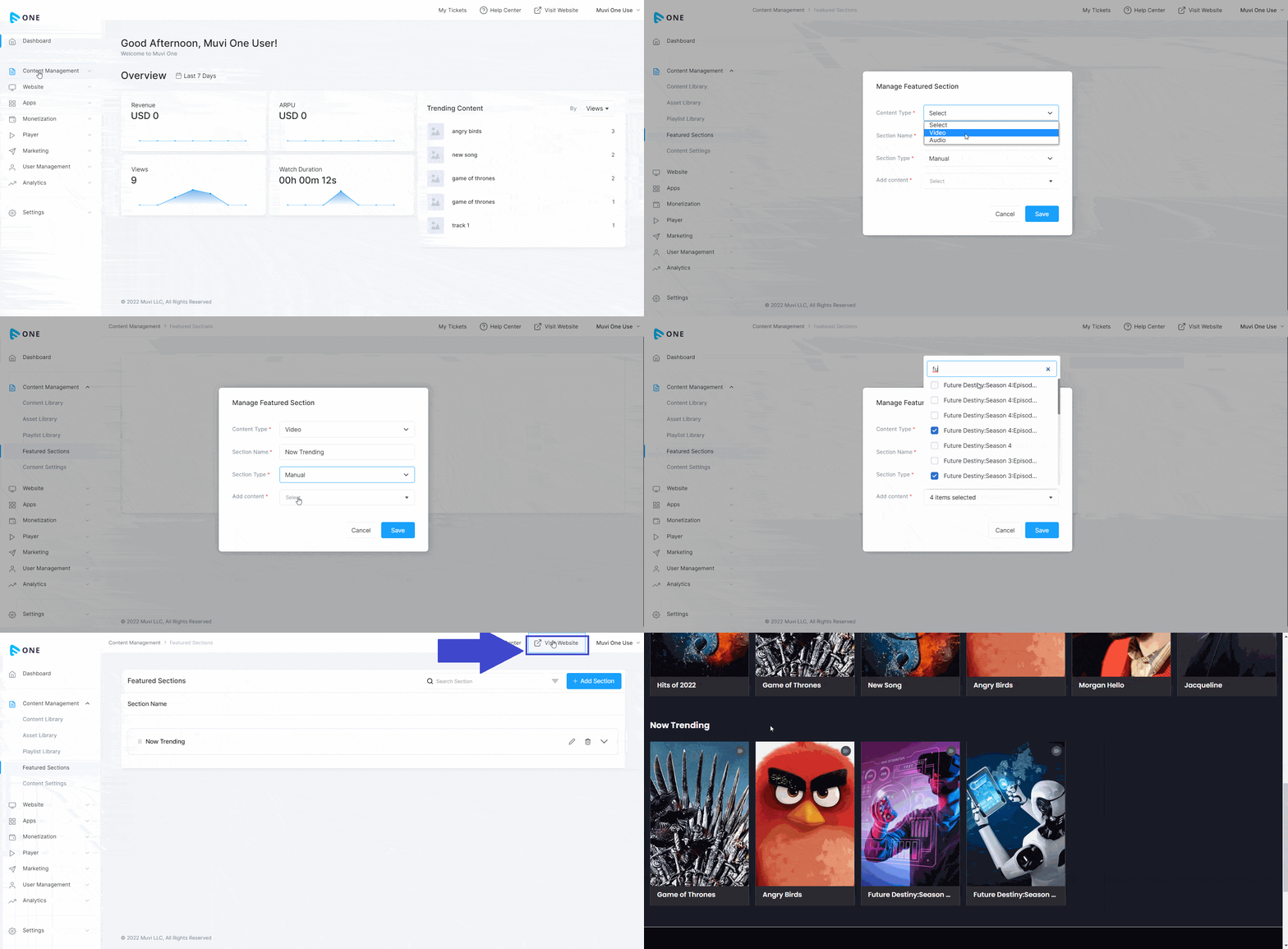
- To add a featured section, navigate to “Content Management” -->” Featured Sections” in the CMS.
- Click on “Add Section”.
- Select the “Content-Type” (i.e., “Video”, Audio”)
- Type the “Section Name” (e.g., Most Popular, Binge Watch, Newly Released, etc.)
- Select the “Section Type” (i.e., “Manual”)
- In the “Add Content” field, search the content (video/audio) from the “Content Library” and click on “Add” to add the content in the featured section. You can search and add multiple contents.
- Click on “Save” to save the featured section. Repeat the process to add multiple feature sections.
- Once the featured section is added, it will be displayed automatically on the homepage of your website.
| Note: You can change the order of the content manually in the "Manual Featured Section". |
Change the Content Order in the Manual Featured Section
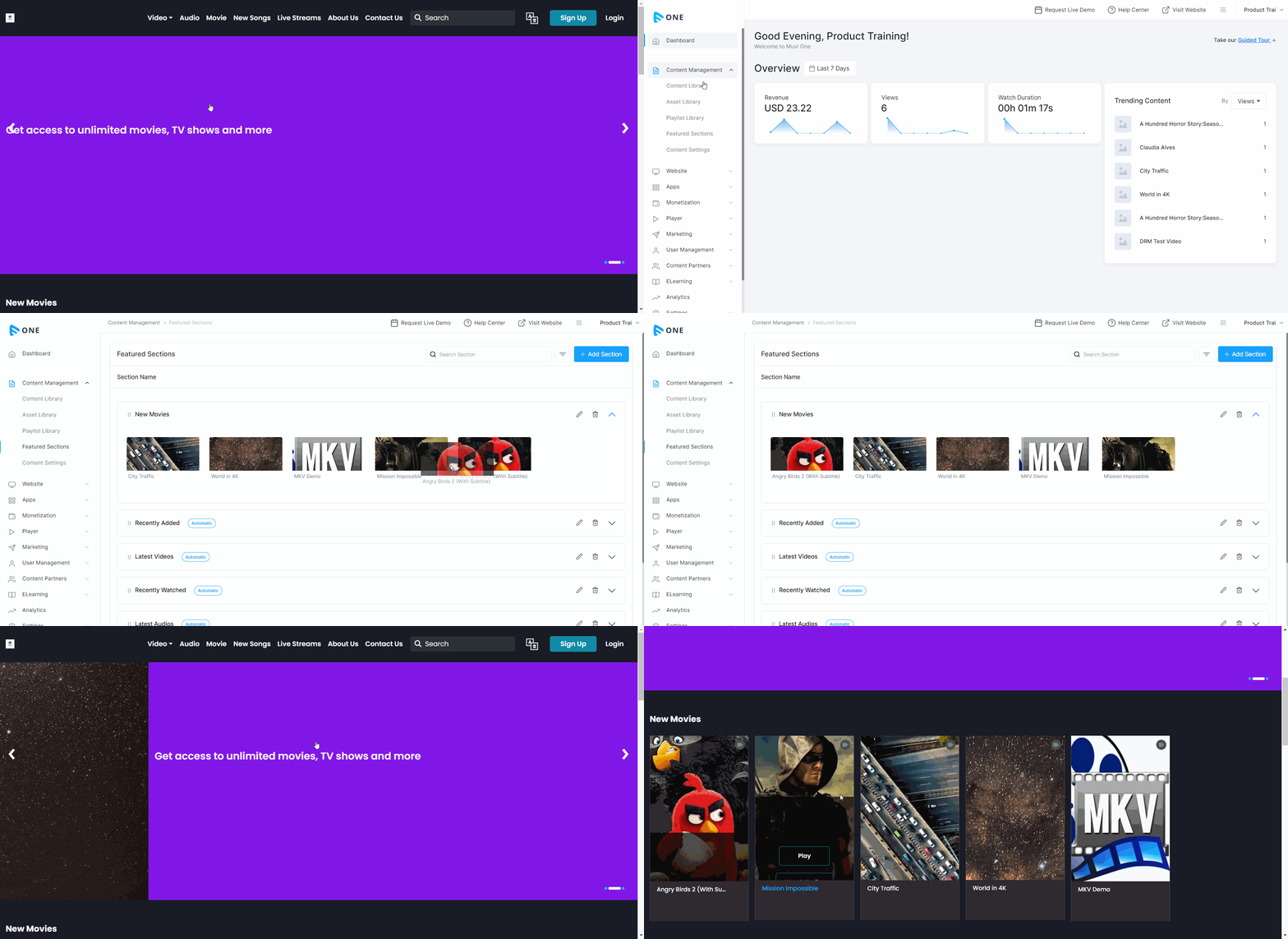
You can change the content order in a "Manual Featured Section".
- To change the content order, navigate to “Content Management” -->” Featured Sections” in the CMS.
- On the right-hand side of a "Manual Featured" section, click on the down arrow icon.
- You can view the content added to the featured section
- Drag and drop to change the order of the content. The content ordering will be changed and the end-users can view it on the front end.
How to Add Automatic Featured Section
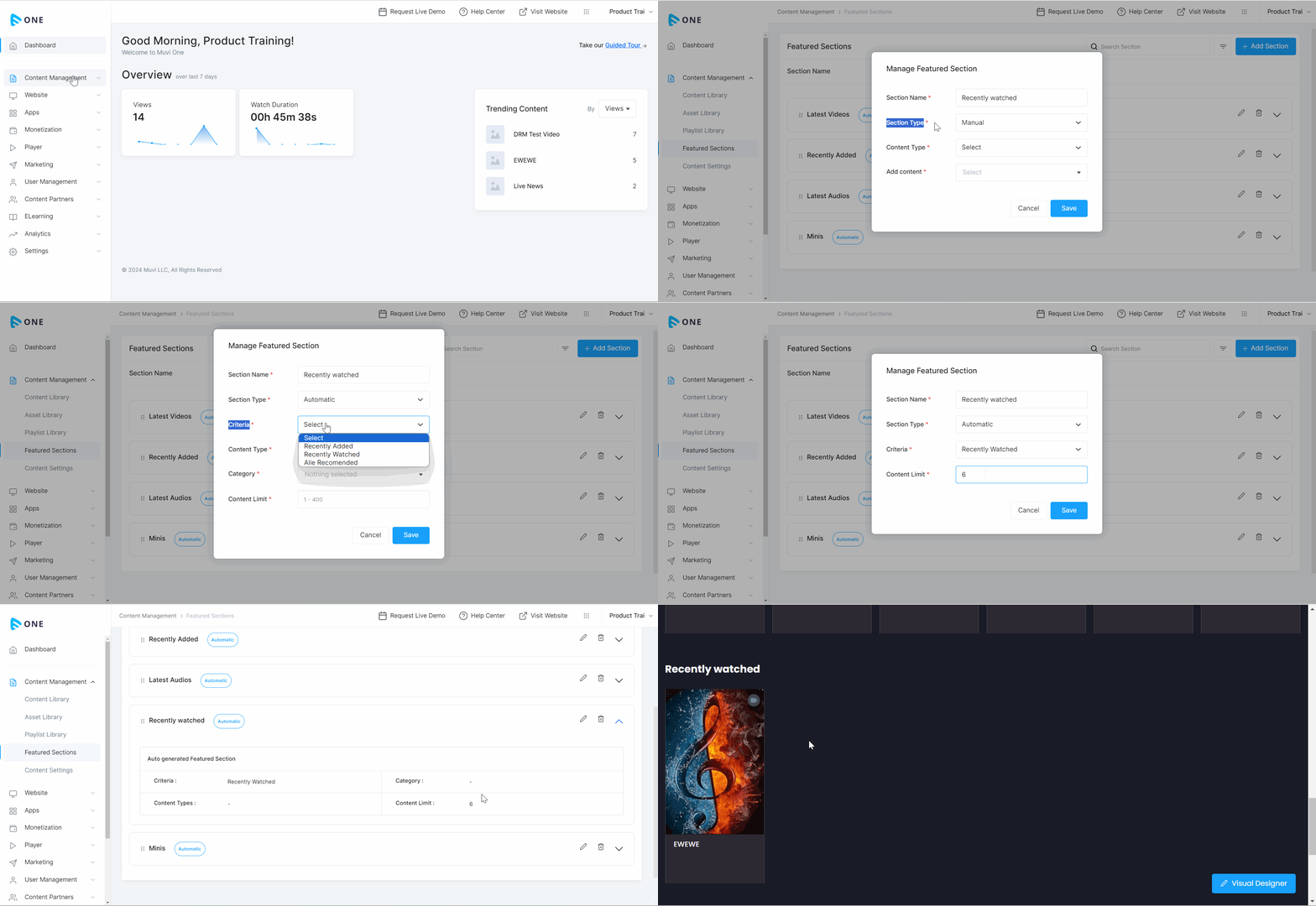
In the “Automatic” featured content section, the contents are added automatically to the featured section, based on the “Criteria” selected from the CMS. For example, if the “Recently Watched” criteria are selected, a featured section will automatically be created and the recently watched content will be added automatically to the featured section.
Adding the Criteria Recently Watched
- Navigate to “Content Management” -->” Featured Sections” in the CMS.
- Click on “Add Section”.
- Type the “Section Name” (e.g., Recently Watched, Recently Viewed, Recently Seen, etc.).
- Select the “Section Type” (i.e., “Automatic”)
- In “Criteria”, select the criteria based on which the content will be displayed in the featured section.
- Select “Recently Watched”. If you select “Recently Watched”, the recently watched content(s) by the end-user will be displayed automatically.
- Select the “Content-Type” (i.e., “Video”, Audio”)
- In “Category”, select the content category(s). The content in that category will be displayed in the featured section. You can select multiple content categories.
- Type the “Content Limit” to show the number of content you want to show in the featured section. The minimum you can select is 1 and the maximum is 400.
- Click on “Save” to save the featured section. Repeat the process to add multiple automatic feature sections.
- Once the featured section is added, it will be displayed automatically on the homepage of your website.
*Note:
|
Adding the Criteria Recently Added
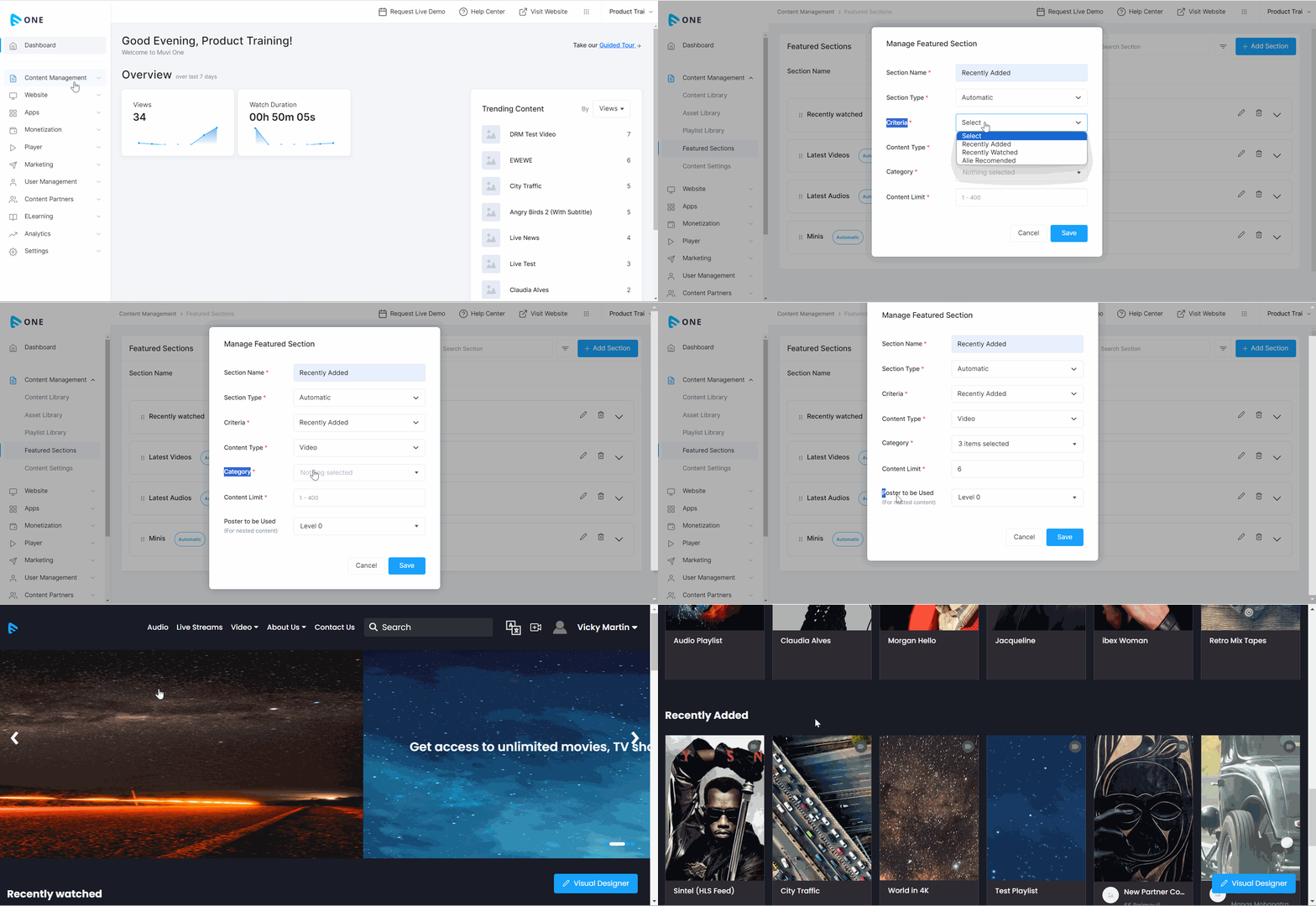
- Navigate to “Content Management” -->” Featured Sections” in the CMS.
- Click on “Add Section”.
- Type the “Section Name” (e.g., Recently Added, Newly Released, etc.)
- Select the “Section Type” (i.e., “Automatic”)
- In “Criteria”, select the criteria based on which the content will be displayed in the featured section.
- Select “Recently Added”. If you select “Recently Added”, the recently added content(s) in the Content Library will be displayed automatically.
- Select the “Content-Type” (i.e., “Video”, Audio”)
- In “Category”, select the content category(s). The content in that category will be displayed in the featured section. You can select multiple content categories.
- Type the “Content Limit” to show the number of content you want to show in the featured section. The minimum you can select is 1 and the maximum is 400.
- In "Poster to Be Used", select the level for the nested content (TV Series, Web Series, etc.). For example, if you select "Level 0", then the "Show" or "Parent" poster will be displayed, and if you select "Level 1", then the "Season" poster will be displayed.
- Click on “Save” to save the featured section. Repeat the process to add multiple automatic feature sections.
- Once the featured section is added, it will be displayed automatically on the homepage of your website.
Adding Criteria Recently Assigned
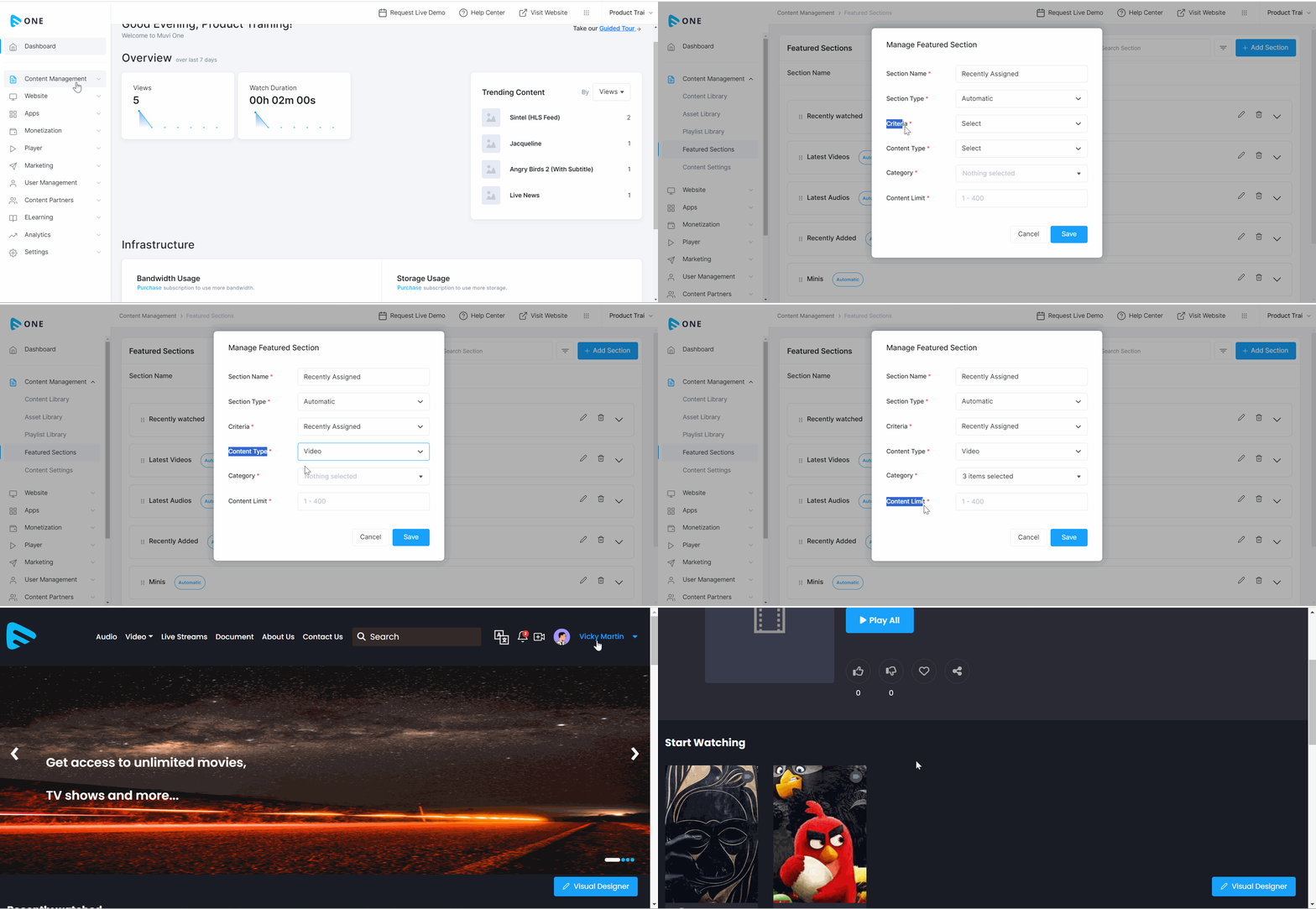
The “Private Playlist(s)” already assigned by the admin to the end-users will be automatically added to this criterion. The featured section will show only the playlist(s) assigned to the specific end-users (Private Playlist) on the front end. The default ordering will be in descending order of the assigned date and time.
| Note: The “Recently Assigned” criteria will be visible in the “Automatic Featured Section” drop-down menu when the “Private Playlist” feature is enabled in the CMS. |
- Navigate to “Content Management” -->” Featured Sections” in the CMS.
- Click on “Add Section”.
- Type the “Section Name” (e.g., Recently Assigned.)
- Select the “Section Type”(i.e., “Automatic”)
- In “Criteria”, select the criteria based on which the content will be displayed in the featured section.
- Select “Recently Assigned”. If you select “Recently Assigned”, the recently assigned “Private Playlist(s)” to the end-users will be displayed automatically.
- Select the “Content-Type” (i.e., “Video”, “Audio”, or “Document”)
- In “Category”, select the content category(s). The content in that category will be displayed in the featured section. You can select multiple content categories.
- If you have added the “Sub-Category”, then you can select the sub-category(s) from the drop-down menu.
- Type the “Content Limit” to show the number of contents you want to show in the featured section. The minimum you can select is 1 and the maximum is 400.
- Click on “Save” to save the featured section. Repeat the process to add multiple automatic feature sections.
- Once the featured section is added, it will be displayed automatically on the homepage of your website.
- When the end-users log in, they can view the playlist(s) assigned to them under this featured section.
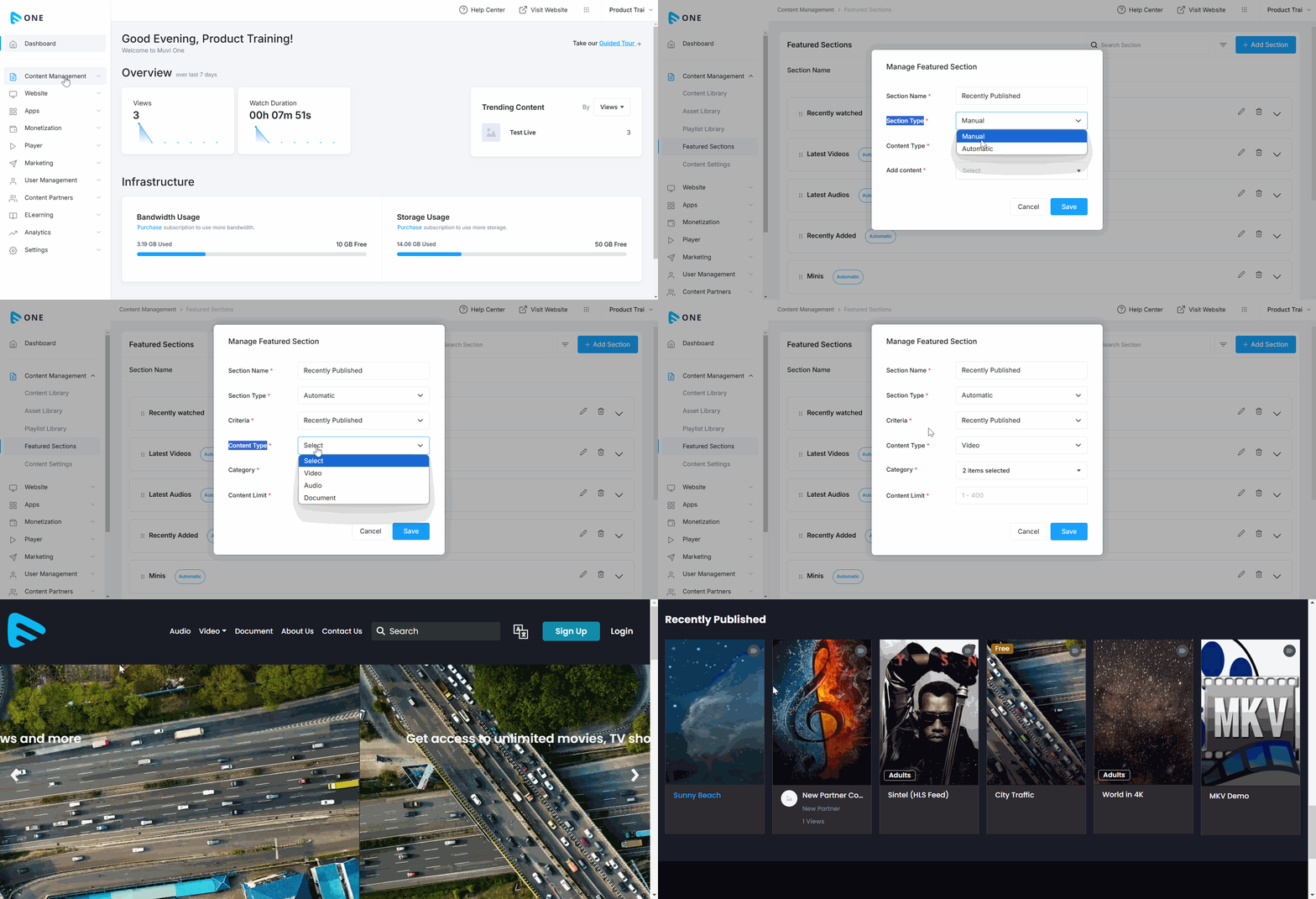
Adding Criteria Recently Published
The "Recently Published" featured section is an automatic featured section that highlights the content on the homepage, organized in descending order of published date and time. This dynamic feature ensures end-users can effortlessly access the latest content as soon as it is published. This is useful when you have already scheduled a few contents to be published at a future date. When the content is published, it will be displayed in the featured section automatically in descending order.
- Navigate to “Content Management” -->” Featured Sections” in the CMS.
- Click on “Add Section”.
- Type the “Section Name” (e.g., Recently Published, Newly Released, etc.)
- Select the “Section Type”(i.e., “Automatic”)
- In “Criteria”, select the criteria based on which the content will be displayed in the featured section.
- Select “Recently Published” from the drop-down menu. If you select “Recently Published”, the recently published content(s) in the Content Library will be displayed automatically.
- Select the “Content-Type” (i.e., “Video”, “Audio”, or “Document”)
- In “Category”, select the content category(s). The content in that category will be displayed in the featured section. You can choose multiple content categories.
- Type the “Content Limit” to show the number of contents you want to show in the featured section. The minimum you can select is 1 and the maximum is 400.
- Click on “Save” to save the featured section. Repeat the process to add multiple automatic feature sections.
- Once the featured section is added, it will be displayed automatically on the homepage of your website.
How to Edit Featured Section
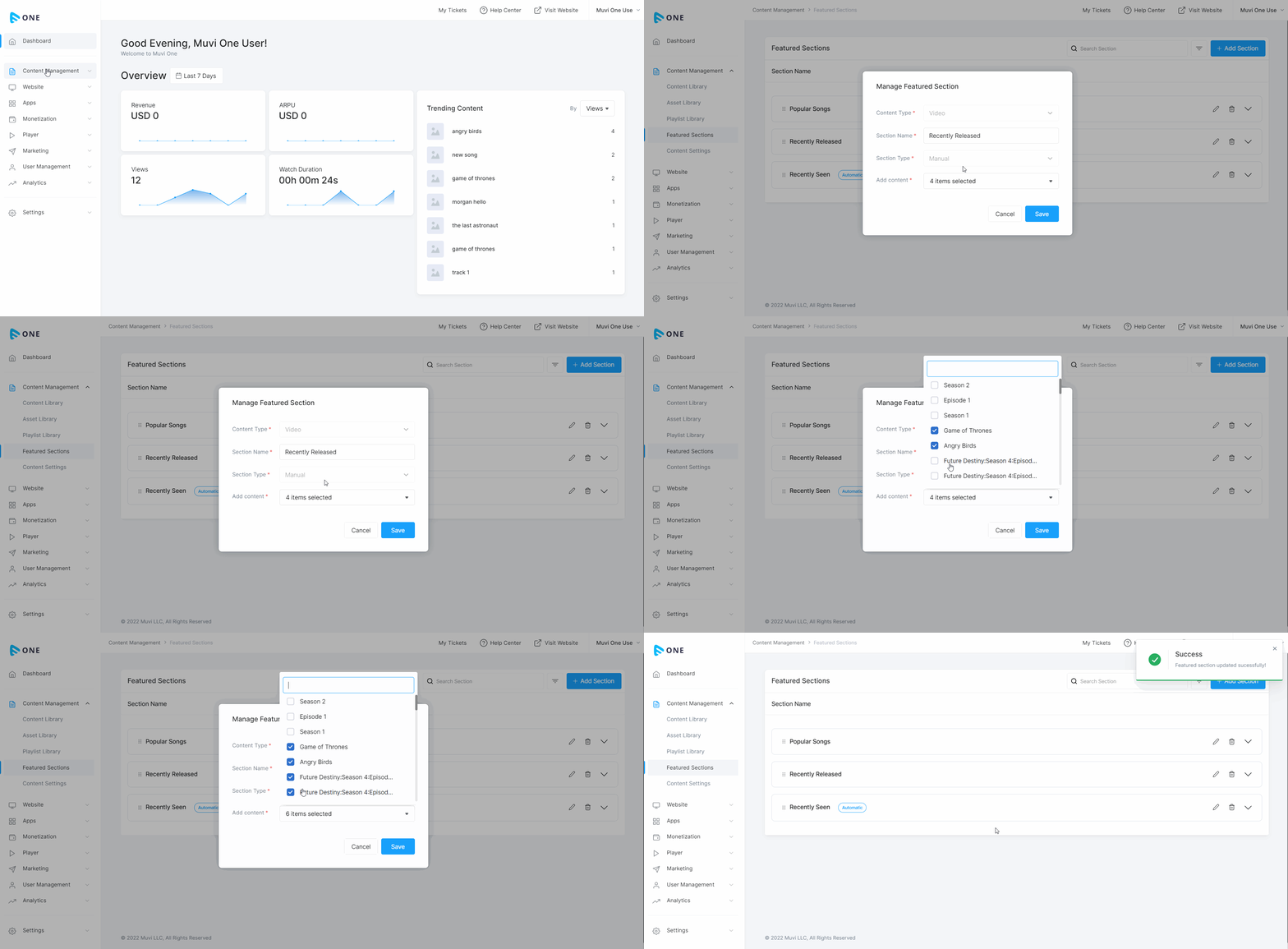
- To edit featured section, navigate to “Content Management” -->”Featured Sections” in the CMS.
- Click on “Edit Icon” on the right-hand side of a specific featured section.
- You can edit the “Section Name”, “Add Content” or “Remove” existing content.
- Click on “Save” to save the changes.
How to Delete Featured Section
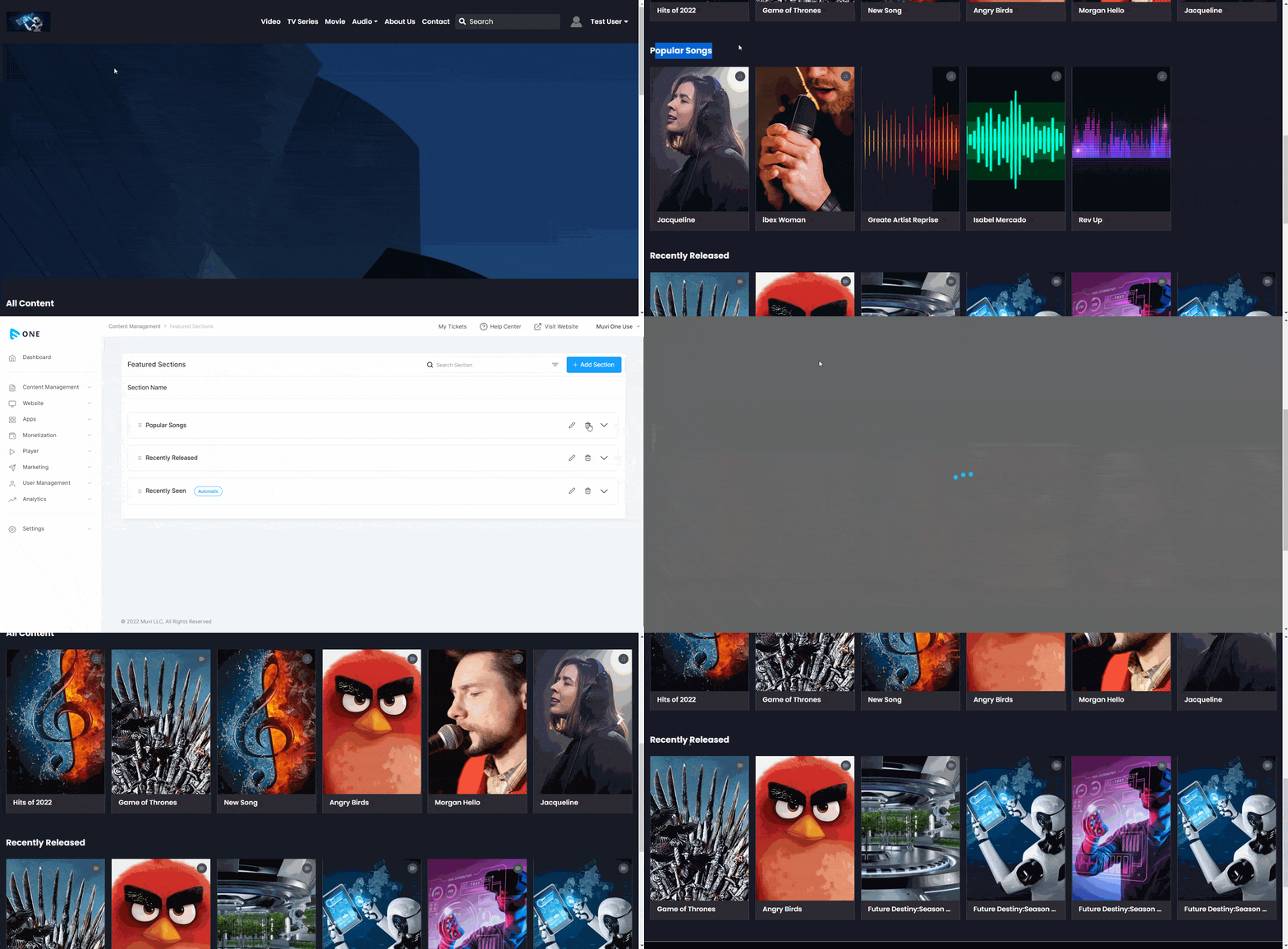
- To delete a featured section, navigate to “Content Management” -->”Featured Sections” in the CMS.
- Click on the “Trash Icon” on the right-hand side of a specific featured section.
- When asked for confirmation, click on “Proceed” to delete the featured section.
Re-order Featured Section
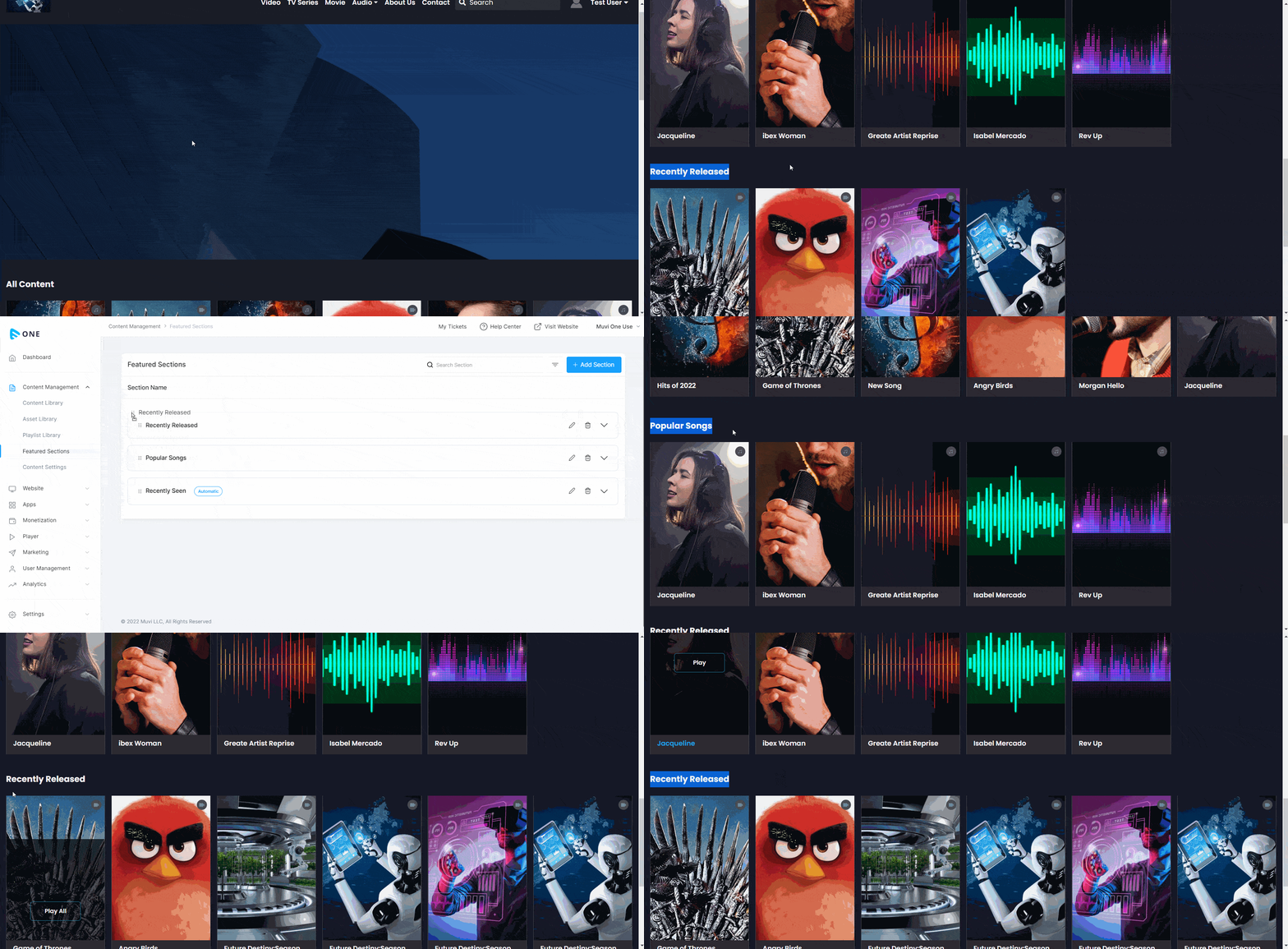
You can re-order the featured sections with the drag-and-drop action.
- Navigate to “Content Management” -->” Manage Featured Section” in the CMS.
- Drag a specific featured section to change its order and drop it on the desired position.
- You can view it on the frontend website.