How to Build Your Android TV App
Build Your Demo Android TV App
How to Purchase the Android TV App
How We Build Your Android TV App
Publishing Your Android TV App in the Play Store
Introduction
Muvi offers a fully featured, white-labeled Android TV App. The Android TV App has features like user registration, login, search, filter, etc. We support Android TV apps based on the Android OS version 9.0 onwards.
| Note: At present, we do not support any embedded content from a third-party platform for the Android TV App. We only support Mp4, HLS(.m3u8), and MPEG-DASH video formats. |
Build Your Demo Android TV App
Before developing your Android TV App, you can get a look and feel of your App through our Demo App. You can build your own white-label demo app. Simply install the App on your TV and go through all the features of the App. Please Click Here to learn how to build and install the demo app.
How to Purchase the Android TV App
First, you need to purchase the App. You can do so from the CMS. The App is only available for Muvi Professional and above subscription plans.
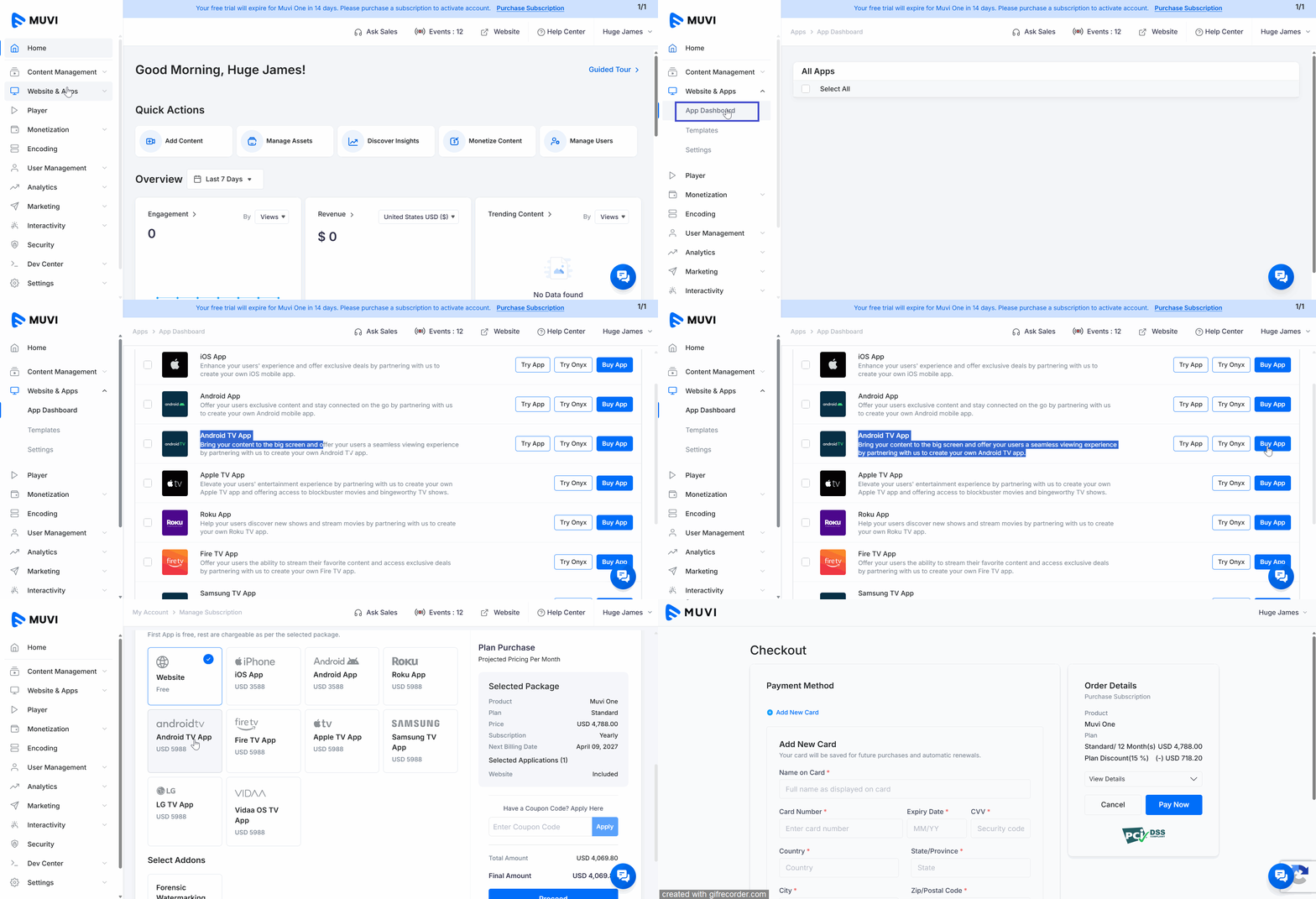
- Navigate to “Website & Apps”>” App Dashboard” in the CMS.
- On the right-hand side of the “Android TV App,” click on “Buy App”.
- Under the “Manage Subscription” tab, scroll down to “Select Applications”.
- Select the “Android TV App”.
- Click on “Proceed”.
- Then, click on “Proceed to Checkout”.
- Select or add your Credit Card details and then click on “Pay Now”.
- The app will be purchased, and you can view the details under the “Payment History” tab.
- Once the app is purchased, you can view it under “My Apps” in the “App Dashboard”.
- If you have already purchased the app, you can skip this step.
How We Build Your Android TV App
- It takes us one day to build the App by using our default template (i.e., Phoenix or Raiden). (If you want any customization then it may take a longer time to develop the App)
- After the App is built, we will send it to you for testing.
- Finally, after getting your approval, we will publish the App in the Google Play Store.
Publish Your Android TV App
To develop your Android TV App, you need to provide us necessary information in the CMS.
- Navigate to “Apps” -->” App Dashboard” in the CMS.
- In the App Dashboard, under “My Apps” you can view the Android TV App that you have already purchased.
- On the right-hand side of the app, click on “Publish App”.
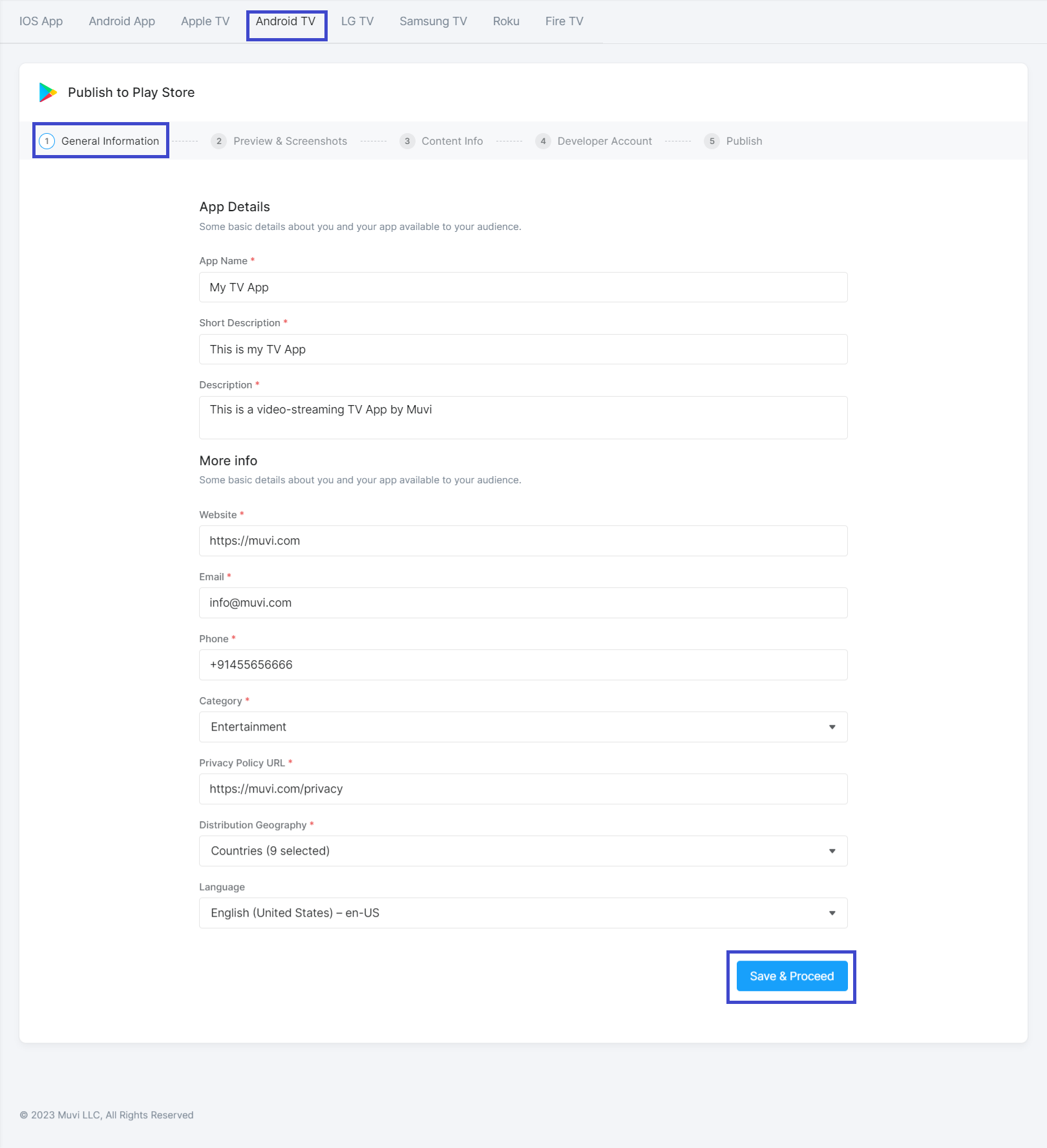
First, provide the General Information (see the below screenshot)
App Details
- In the “App Name” field provide the name of your TV App (maximum limit 50 characters)
- Provide a short description of your App in the “Short Description” field (maximum limit of 80characters)
- In the “Description” field provide a complete description of your App (maximum limit of 4000characters)
More Info
- Type your "Website URL".
- Provide your "Email Address".
- Provide your "Phone" number.
- Select a "Category" from the dropdown.
- Type your "Privacy Policy URL".
- Select "Distribution Geography" from the drop-down.
- Select "Language" from the drop-down.
- Click on "Save and Proceed”. (See the below screenshot).
Preview and Screenshot
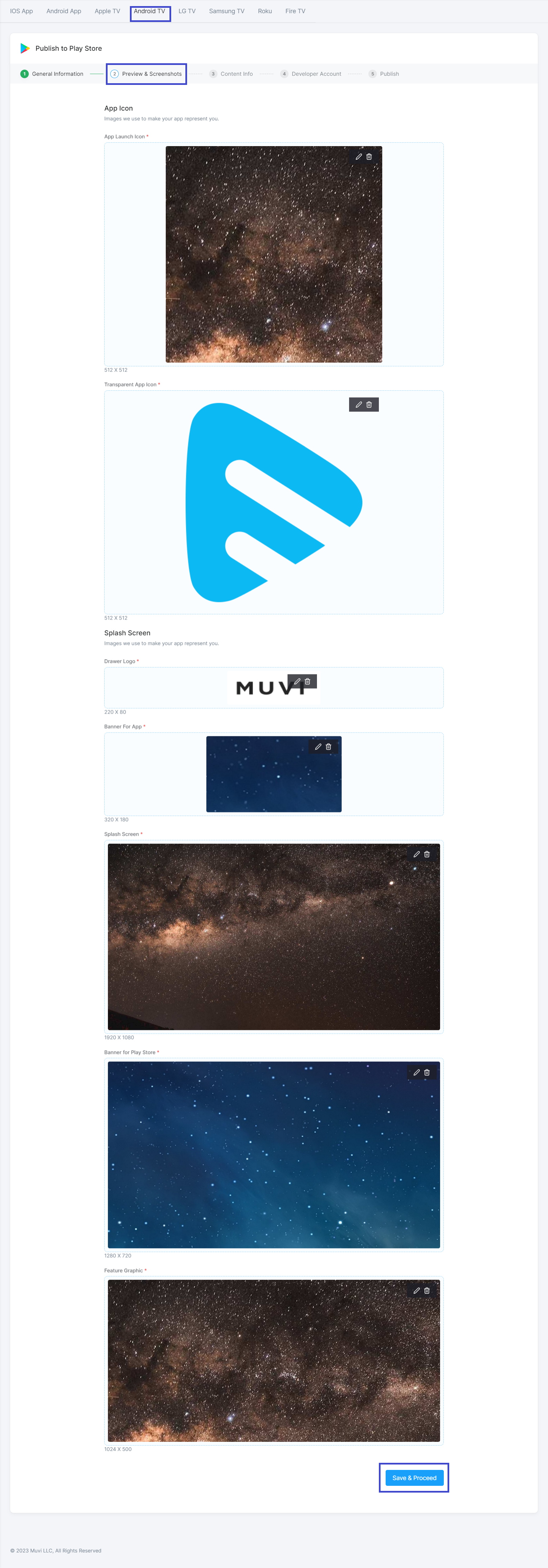
Upload the images required to build the app (see the below screenshot).
- Upload the "App Launch Icon" (size 512 x 512).
- Upload "Transparent App Icon "(size 512 x 512).
- Upload "Drawer Logo" (size 220 x 80).
- Upload "Banner for App" (size 320 x180)
- Upload the "Splash Screen" (size 1980 x 1080).
- Upload "Banner for Play Store" (size 1280 x720)
- Upload the "Featured Graphic" (size 1024 x 500).
Content Info
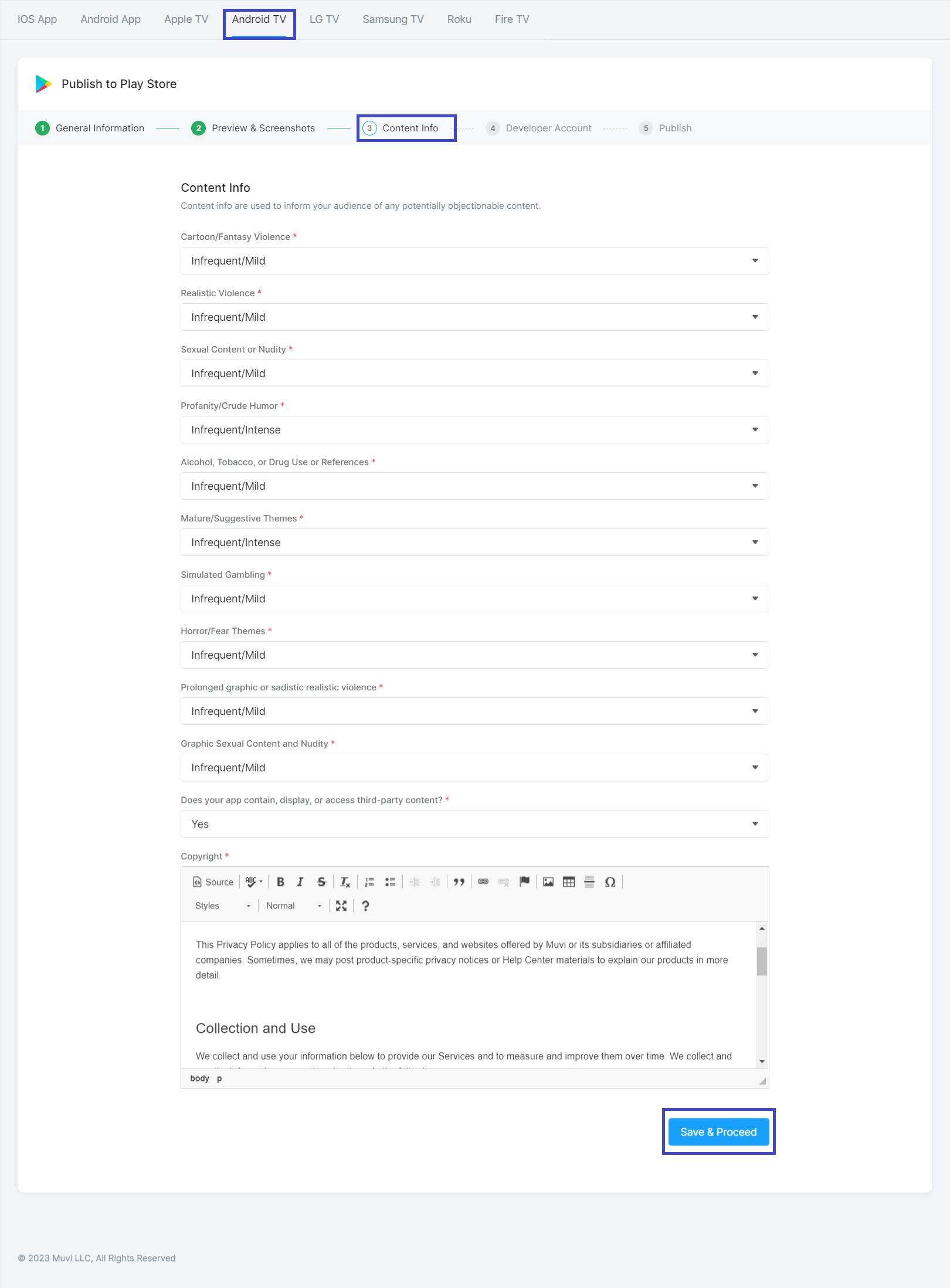
Content info is used to inform your audience of any potentially objectionable content.
- For the content criteria "Cartoon/Fantasy Violence" select "Infrequent/Mild" or "Infrequent/Intense", based on the content type.
- For the content criteria "Realistic Violence" select "Infrequent/Mild" or "Infrequent/Intense", based on the content type.
- For the content criteria "Sexual Content, or Nudity" select "Infrequent/Mild" or "Infrequent/Intense", based on the content type.
- For the content criteria "Profanity/Crude Humor" select "Infrequent/Mild" or "Infrequent/Intense", based on the content type.
- For the content criteria "" select "Infrequent/Mild" or "Infrequent/Intense", based on the content type.
- For the content criteria "Mature/Suggestive Themes" select "Infrequent/Mild" or "Infrequent/Intense", based on the content type.
- For the content criteria "Simulated Gambling" select "Infrequent/Mild" or "Infrequent/Intense", based on the content type.
- For the content criteria "Horror/Fear Themes" select "Infrequent/Mild" or "Infrequent/Intense", based on the content type.
- For the content criteria "Prolonged graphic or sadistic realistic violence" select "Infrequent/Mild" or "Infrequent/Intense", based on the content type.
- For the content criteria "Graphic Sexual Content, and Nudity" select "Infrequent/Mild" or "Infrequent/Intense", based on the content type.
- For the content criteria "" select "Yes" or "No", based on the content type.
- Type your "Copyright" statement. You can use the text editor to customize your content.
- Click on "Save & Proceed".
- If you select the first option (i.e., Use My Developer Account Credentials), then provide the following details (see the below screenshot).
- Your "Developer Account Name".
- Provide your Android Developer "Email Address".
- Provide your Android Developer "Password".
- Provide the "Tester Email ID" (You can provide multiple tester IDs)
- Click on "Build" to build your Android TV App.

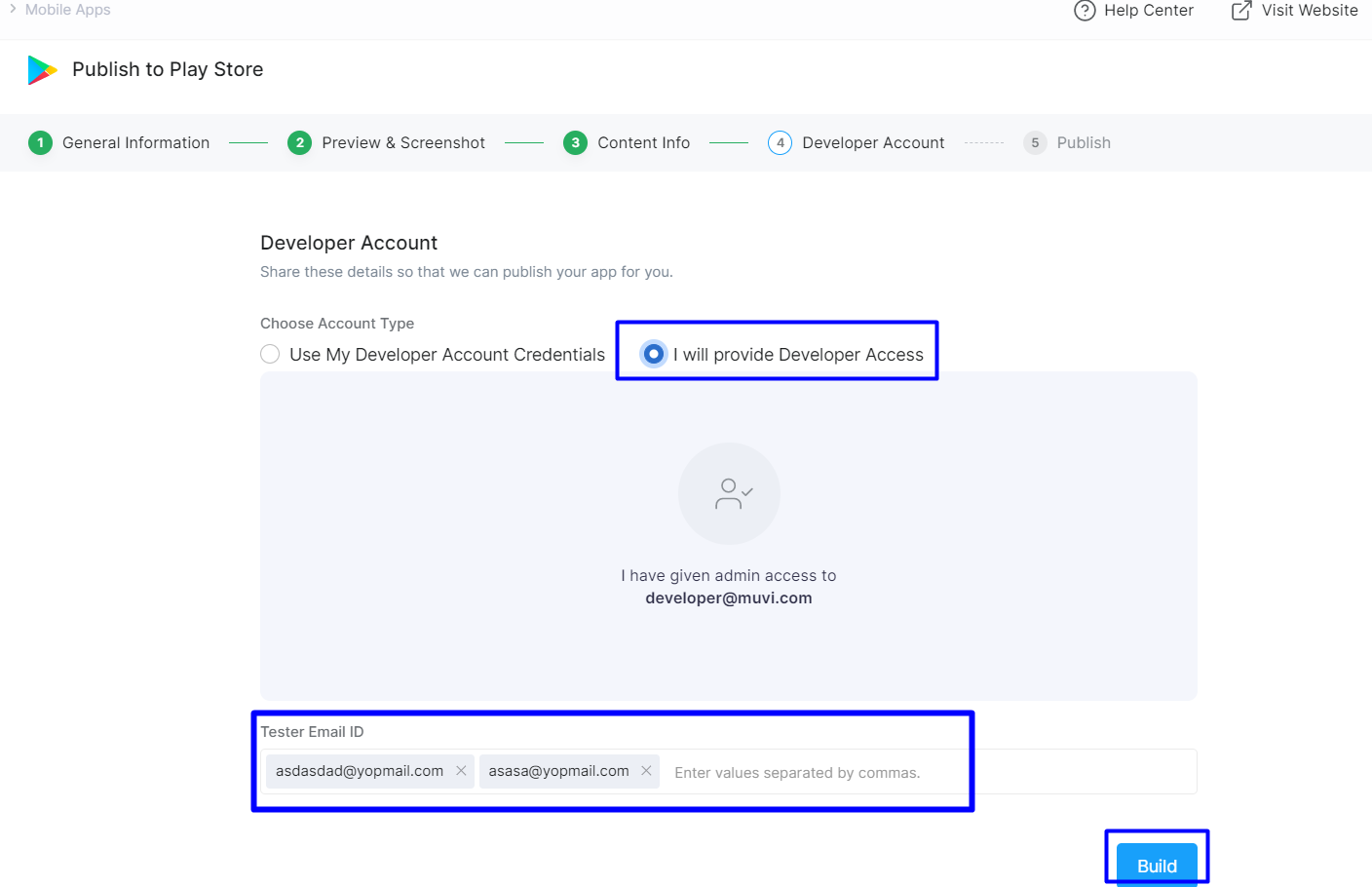
If you select the second option (i.e., I will provide Developer Access.), then provide the following details.
- Provide Play Store access to Muvi (to know how to give the Play Store Access click here).
- Provide the "Tester Email ID" (You can provide multiple tester IDs)
- Click on "Build" to build your Android app (see the below screenshot).
- All this information will be stored in our database and we will develop the Android TV App based on the information provided by you.
Testing Your Android TV App
1. We will upload the app for Beta testing from your Developer Account in the App Store.
2.Through beta testing, we will invite you to test the app.
3.Then we will publish the app in the app store from your Developer Account.
Publishing Your Android TV App in the Play Store
We will publish the App in the Google Play Store either by using our Developer’s ID or by using your Developer’s ID. If you use your Developer’s ID, then the App will show your company or brand name in the Play Store.
App Maintenance
Muvi maintains the Android TV App on an ongoing basis. It includes making updates and patches as required to support new app versions and Android TV devices.