Uploading Videos
Product: Muvi One (Classic)
Introduction
Muvi allows you to upload videos to your Video Library by using different methods. You can also upload a wide range of video formats including, .mov, and .flv. vob, .mp4, .m4vand , .mkv, .avi, .3gp and .mpg. (We recommend uploading .mp4 videos to make the encoding process faster. There are different quality of video formats you can upload. The highest quality video format we support is 4k (3840x2160 )).
| Note: When you upload a video to the Video Library, it will not be automatically displayed on the front-end to the users unless you mapped it to any content. To know, how to map a video to content click here. |
How to Upload Videos
There are 5 methods available in Muvi CMS to upload your videos to your website.
1. From Computer (Browser-Based Upload)
5. Through S3 Sync (Share Videos From Amazon S3 Server)
| *Note: While uploading videos, you can use the "Aspera" tool which is an alternative to FTP and uploads videos much faster than FTP. |
1. From Computer
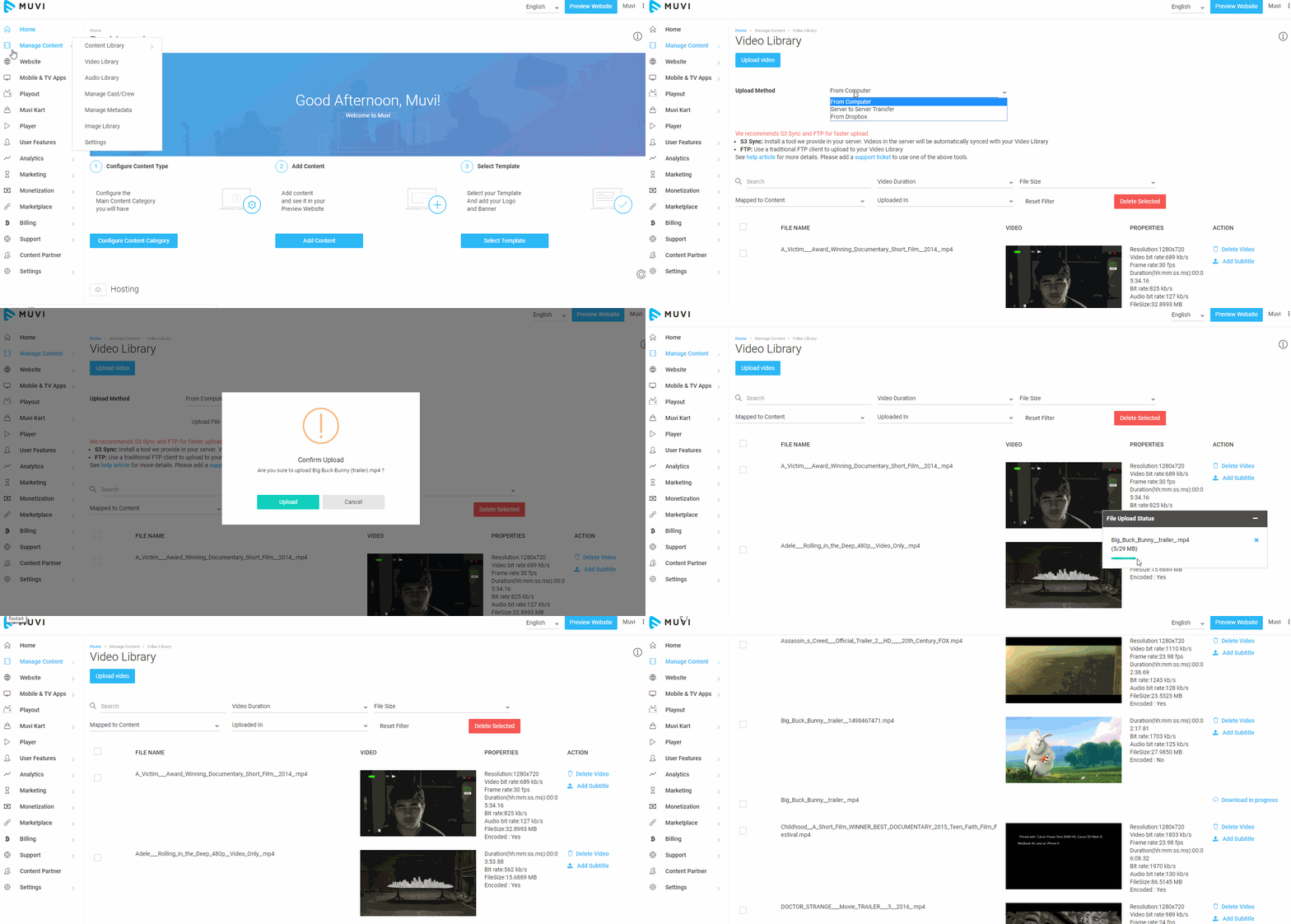
- Go to "Manage Content "--> "Video Library" in your CMS.
- Click on "Upload Video”.
- Then select “From Computer” from the drop-down menu.
- Click on “Upload File” to upload the video from your computer. You can upload as many videos as you want. There is no limit to uploading the number of videos and the size of the videos.
| Note: When you upload your video, you can view its status on your screen. The status window will show how many videos you have uploaded with the progress bar and upload information. Once the video is uploaded you can view it in Video Library. |
2.Server to Server Transfer
We provide a Server-To-Server Transfer method for the video uploading.
-
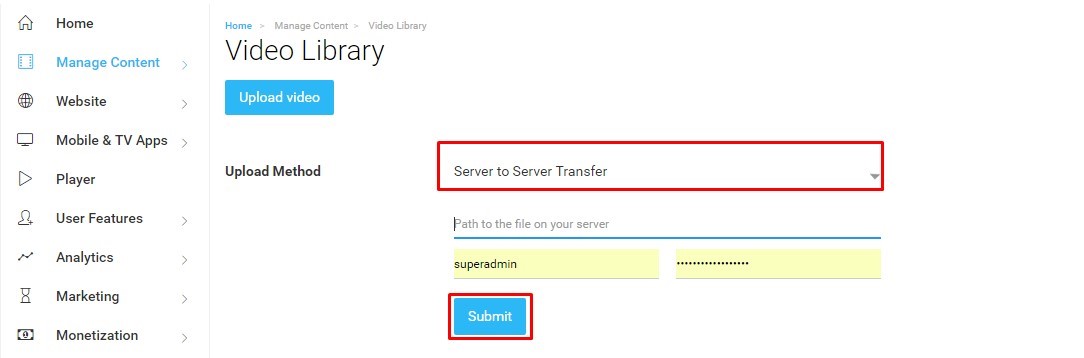
- Select the option “Server to Server Transfer” from the drop-down list (See Below Screenshot)
- Provide the path to the file on your server in the corresponding field
- Give your User Name and Password in the respective fields
- Click on “Submit” to start uploading the video
| Note: This method only supports a single video file upload. If you have several videos then you have to repeat the process for each video file. |
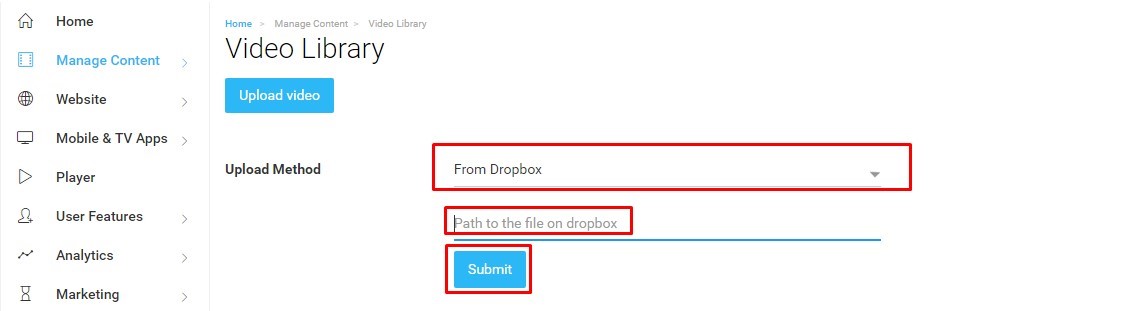
3.From Dropbox
If you have a Dropbox account and uploaded all your videos there then, you can pull the videos to your Muvi CMS with the following steps.
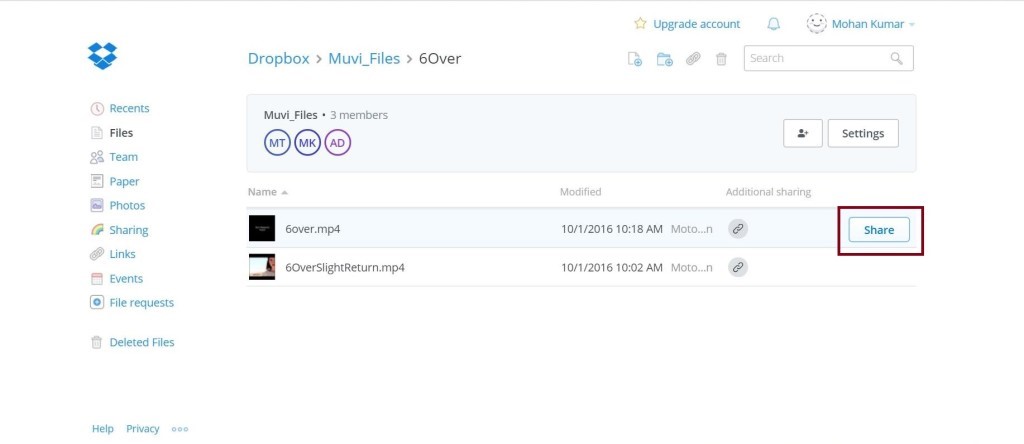
- Login to your Dropbox account, go to “Files “and open your uploaded contents.
- You will find a “Share “menu at the right side while pointing to your video.
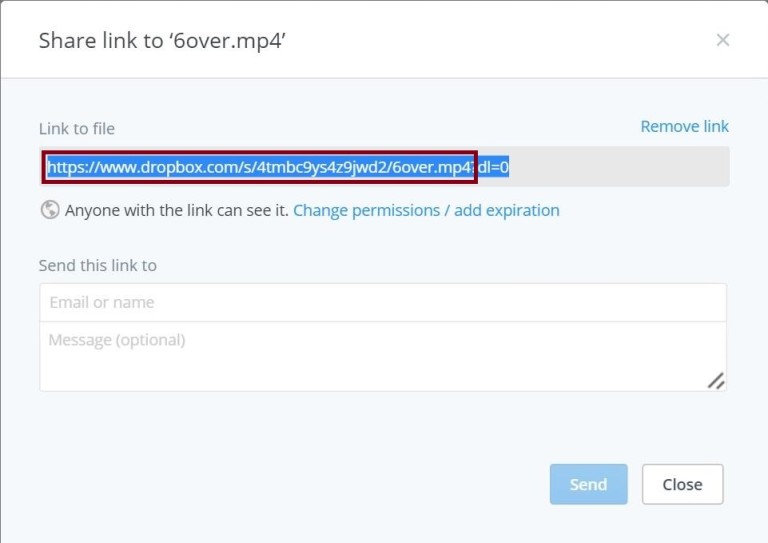
- Select “Share “and you will get a pop up window and copy the URL of your video as shown in the below screenshot.
- In your Muvi CMS, select the option “From Dropbox” from the drop down list (See Below Screenshot)
- You need to paste the URL copied from Dropbox till the extension of the video format in the field “Path to the file on Dropbox”.
- Refer the above screenshot closely where the video format is .mp4 and you need to delete all other text after the video format (we have removed ‘‘? dl=0” in the URL).
- Click on “Submit” to start uploading the video
4. Through FTP
In this method, we use a traditional FTP client to upload videos to Muvi’s video library. At present, we are using FTPS (FTP over SSL), which is a secure version of FTP. You can also bulk-upload audio files and images as well.
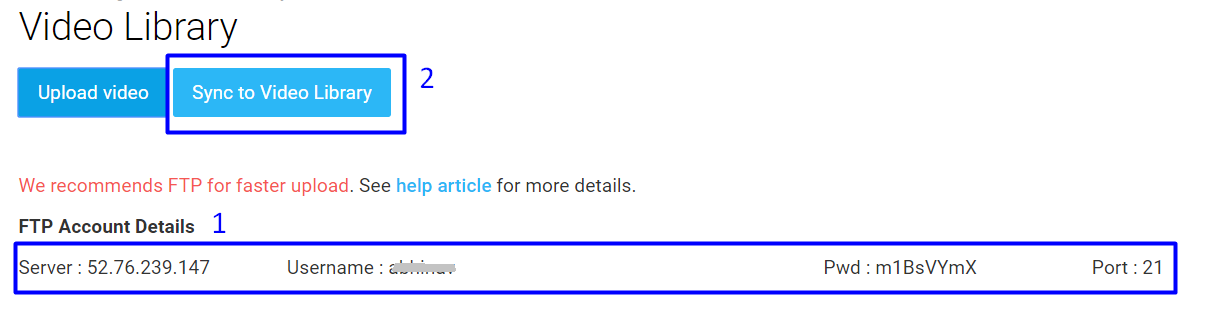
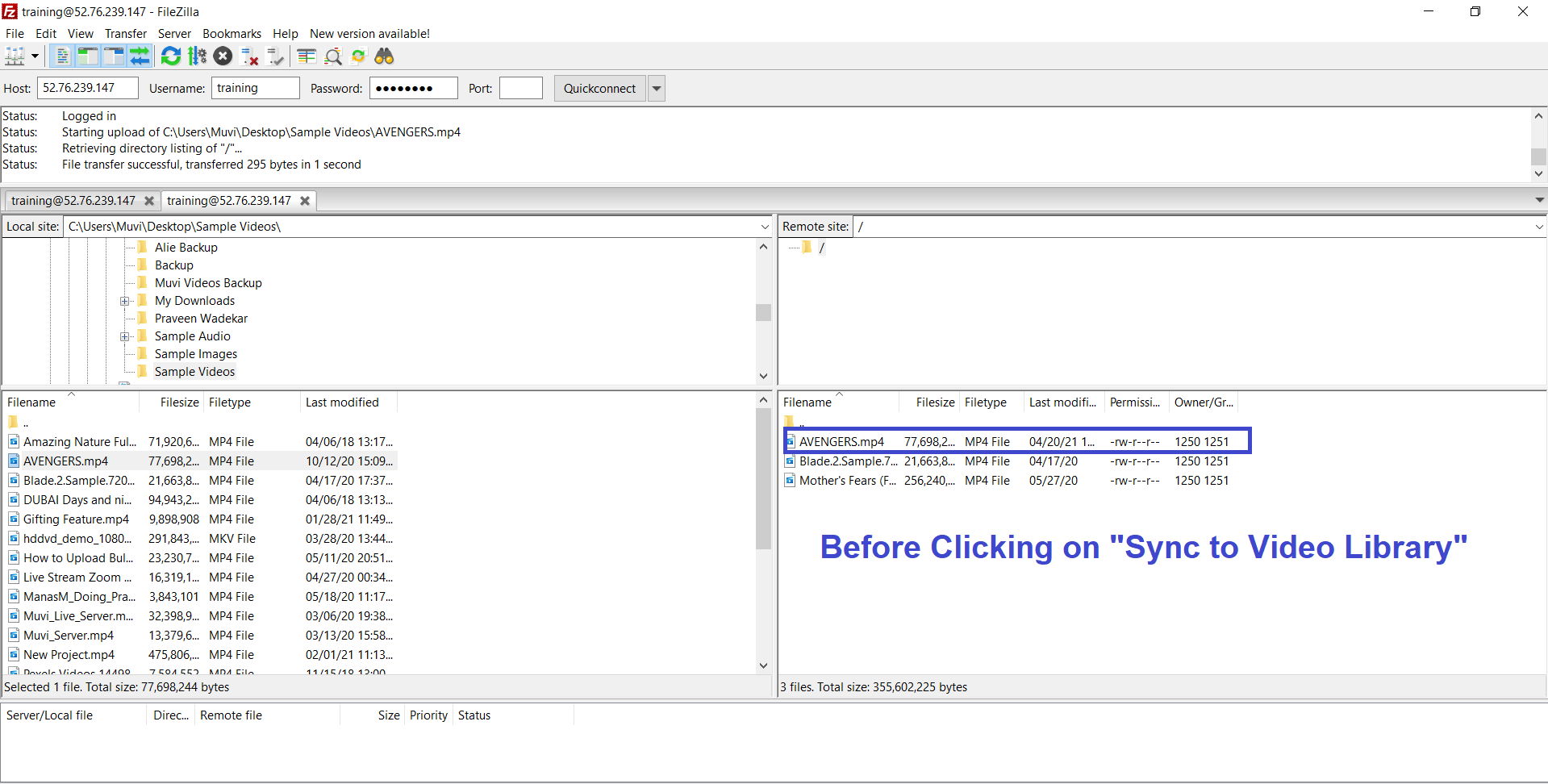
- Login to the FTP account with the FTP account details provided in the CMS (See Below Screenshot). You can install FileZilla or WinSCP and then log in to it using the FTP details provided.
- After connecting to this FTP account, you can upload your videos.
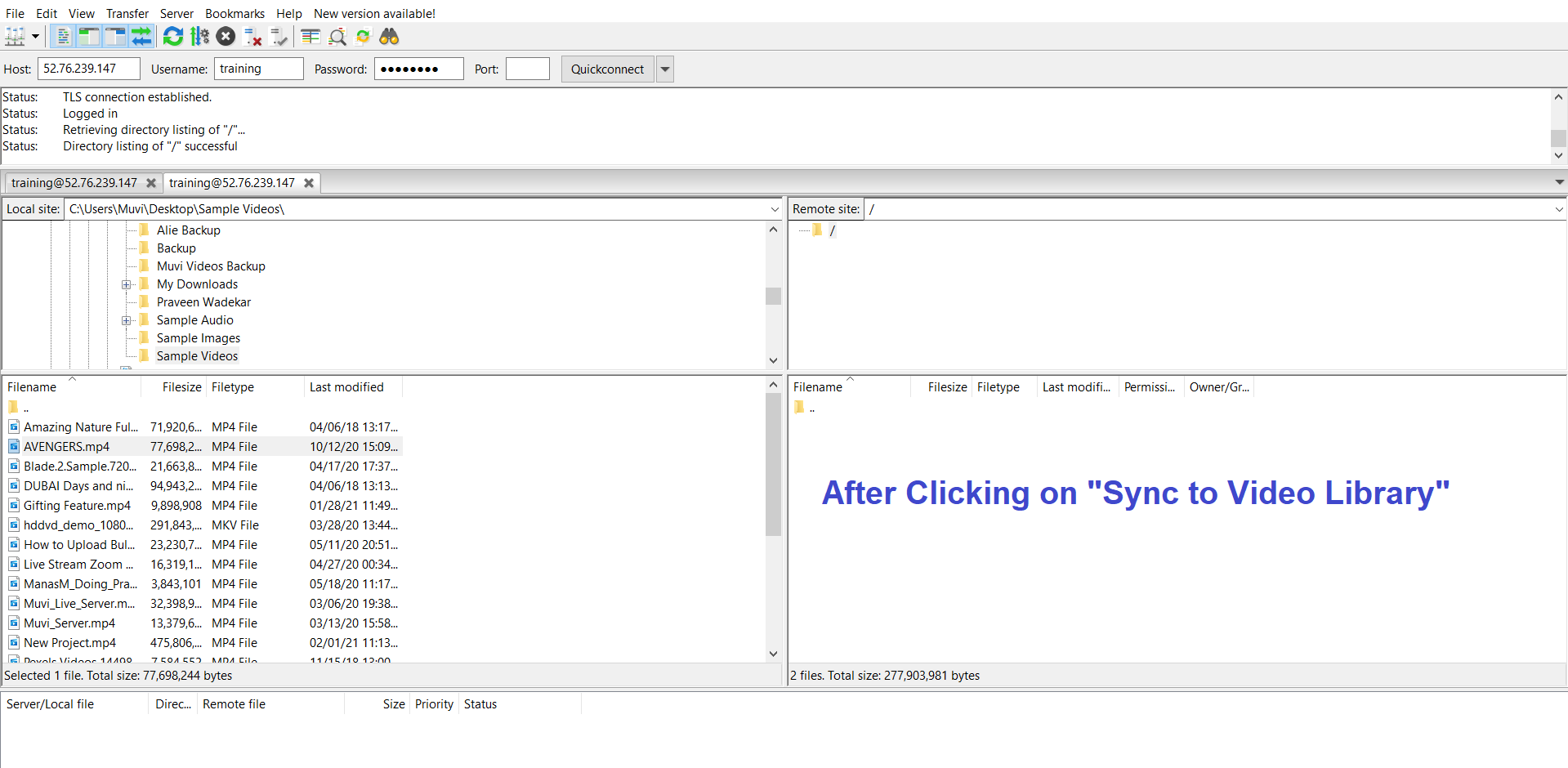
- Then, you need to click on “Sync to Video Library” on your Video Library page in the CMS (See Below Screenshot).
- Then all your videos will be automatically uploaded to your "Video Library".
Through this method, you can upload bulk videos to your video library. Another advantage is that you can connect to this account from multiple computers at the same time and upload your videos.
Note:
|
var viewPortTag=document.createElement('meta');viewPortTag.name='viewport';viewPortTag.content='width=device-width; initial-scale=1.0; maximum-scale=1.0; user-scalable=0;';window.parent.document.getElementsByTagName('head')[0].appendChild(viewPortTag);
5.Through S3 Sync (Share Videos From Amazon S3 Server)
If you have videos on the Amazon S3 server, then you can share these videos with us. By using this method you can upload bulk videos to your Video Library. There are 2 methods to share your videos with us.
1 . You need to provide us the Access Key and Security Key of the AWS(Root/IAM) user and give us the full permission on all S3 operations. We will transfer the videos from your S3 account to our account. (Please do not remove the permission and user if you want to continue to share the videos from your S3 account in the future)
2 . This is a one-time video sharing process. You need to share the videos with us like the above-mentioned process, then you can remove the user and permission after transferring the videos to our server.
|
Important Note:
|
Once your video is uploaded, it will show on the “Video Library” page of the CMS.