How to Customize Your Website
Product: Muvi OneConfigure the Menu of Your Website
Customize the Settings of Different Pages
How to Add a New Page to Your Website
Adding Social Media Pages to Website
Using the Code Editor to Customize Your Website
How to Check the Desktop/Mobile/Tab View
How to Add Elements (Widgets) to Your Website
Introduction
In Muvi One you can customize your website using the Visual Designer and Code Editor. Using the Visual Designer (VD), you can customize your website without writing a single code. VD allows you to use a completely visual canvas that brings ideas to reality. Whereas the Code Editor allows you to customize your website by writing codes (like JavaScript, HTML, CSS, etc.). You can easily add logos, banners, menu items, new static pages, customize featured sections on the homepage, and more…
Add Your Website Logo
A sample logo is already added to the Phoenix template. So, when you visit your website, you can view this sample logo. However, you can change this and add your own logo to the website. You can upload a logo and customize its size and appearance as well.
- To add a logo, navigate to “Website & Apps” -->” Templates” in the Dashboard.
- Under the active template, click on “Customize”.
- The Visual Designer (VD) will open.
- Click on the “Logo” in the top left corner.
- Click on “Edit Logo”.
- On the right-hand side pane, you can see the option to “Upload” a new logo and “Delete” the existing logo.
- Click on the “Upload” icon to upload a logo. You can select the logo image from the Asset Library, or you can upload it from your device.
- You can drag and resize the logo.
- Click on “Save as Draft” in the top right corner to save the logo.
- Click on “Preview” to see how the logo appears on your website.
- Click on “ Save and Publish” in the top right corner to publish the logo.
- Click on “Done” or click on "Visit Website" to view the logo on your website.
Add Favicon to Your Website
You can add a favicon (a small icon that appears on the browser tab) to your website. When your end-users visit your website, they can view the favicon on the browser tab.
- To add a favicon, navigate to “Website & Apps” -->” Templates” in the Dashboard.
- Under the template, click on “Customize”.
- The Visual Designer (VD) will open.
- Click on the “Logo” in the top left corner.
- Click on “Edit Logo”.
- On the right-hand side, click on the "Upload Icon" to upload a favicon image (Supported image formats: JPG, JPEG, PNG, TIFF, SVG ).
- You can select the favicon image either from the "Asset Library" or from your "Device".
- You can drag and resize the favicon image.
- Click on “Save as Draft” in the top right corner to save the favicon.
- Click on “Preview” to see how the favicon appears on your website.
- Click on “ Save and Publish” in the top right corner to publish the favicon.
- Click on “Done” or click on "Visit Website" to view the favicon on your website.
Add Banners to Your Website
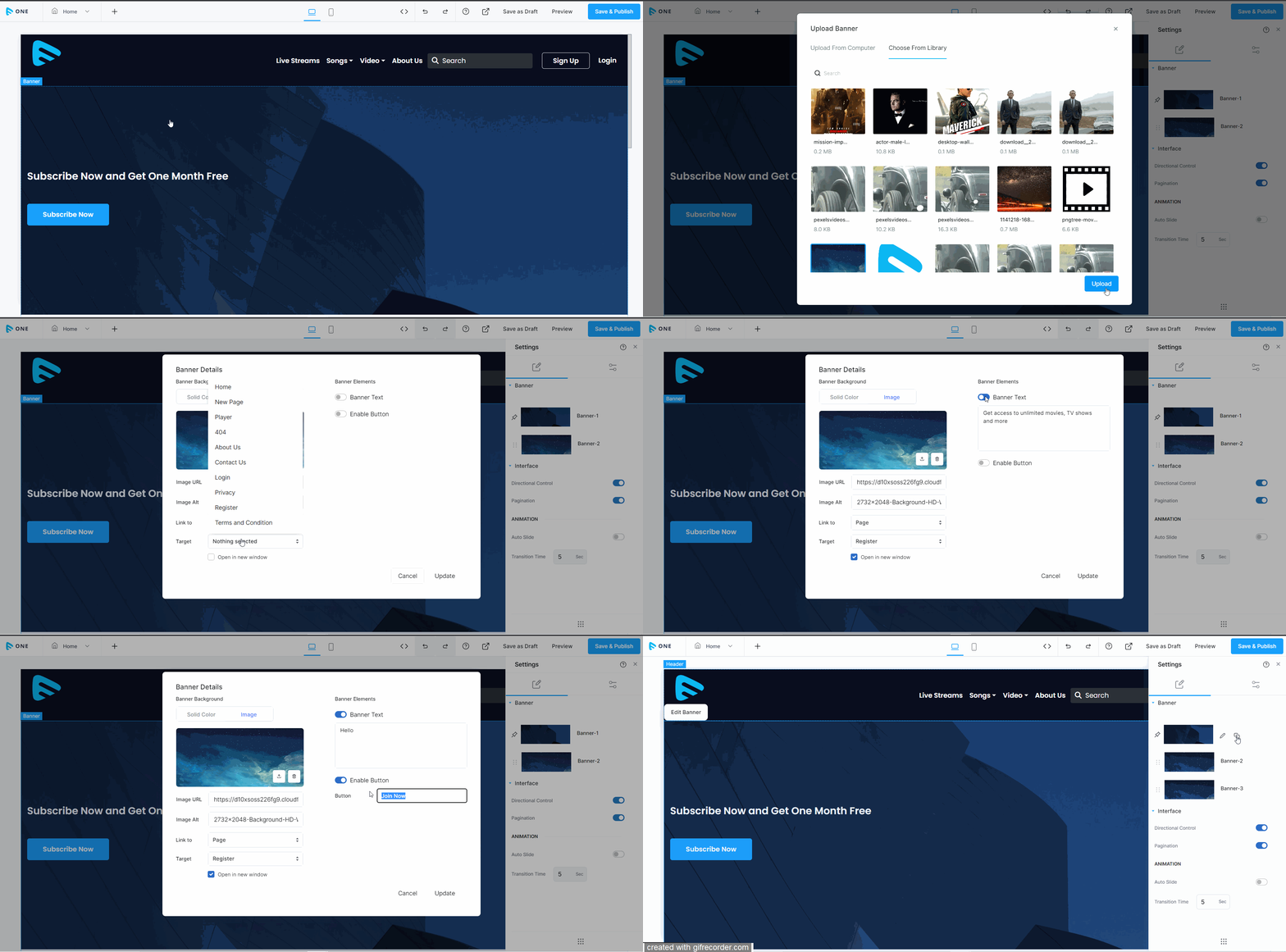
You can add multiple banners to your website. You can even select different banner transitions and display the banners in different styles on the website.
- To add a banner, navigate to “Website & Apps” -->” Templates” in the Dashboard.
- Under the template, click on “Customize”.
- The Visual Designer (VD) will open.
- Click on the “Banner”.
- Click on “Edit Banner”.
- On the right-hand side pane, you can see the option to add and/or edit the existing banners.
- Click on the bottom of the pane to add a new banner.
- You can add a "Solid Color" banner or upload a banner "Image".
- To upload an image for the banner, click on the "Image" tab.
- Click on the "Upload Icon" to upload the banner.
- Once the banner is uploaded, you can link the banner to an existing "Page", "Content Category" or "Web Address".
- Under the "Banner Elements", you can enable "Text" and/or "Button". You can edit the banner text.
- If you are adding the button for the banner, you can link it to any page in your website (e.g., Homepage, About Us, Sign Up) using the Visual Designer (VD).
- Click on "Update" to add the banner.
- Click on the “Edit” icon to edit a banner. You change the banner image, link to the banner, and change the banner text and/or button.
- Click on the "Duplicate" icon to duplicate an existing banner.
- Click on "Interface" to enable the "Directional" control, "Pagination", and "Banner Transition".
- For Slider, you can select Directional Control, Pagination, and Auto Slide
- You can also set the “Transition” time.
- Click on “Save the Draft” in the top right corner to save the changes.
- Click on “Preview” to preview how the banner appears on your website.
- Click on “ Save and Publish” in the top right corner to publish the changes.
- Click on “Done” or "Visit Website" to view the banner changes you have made on the website.
Configure the Menu of Your Website
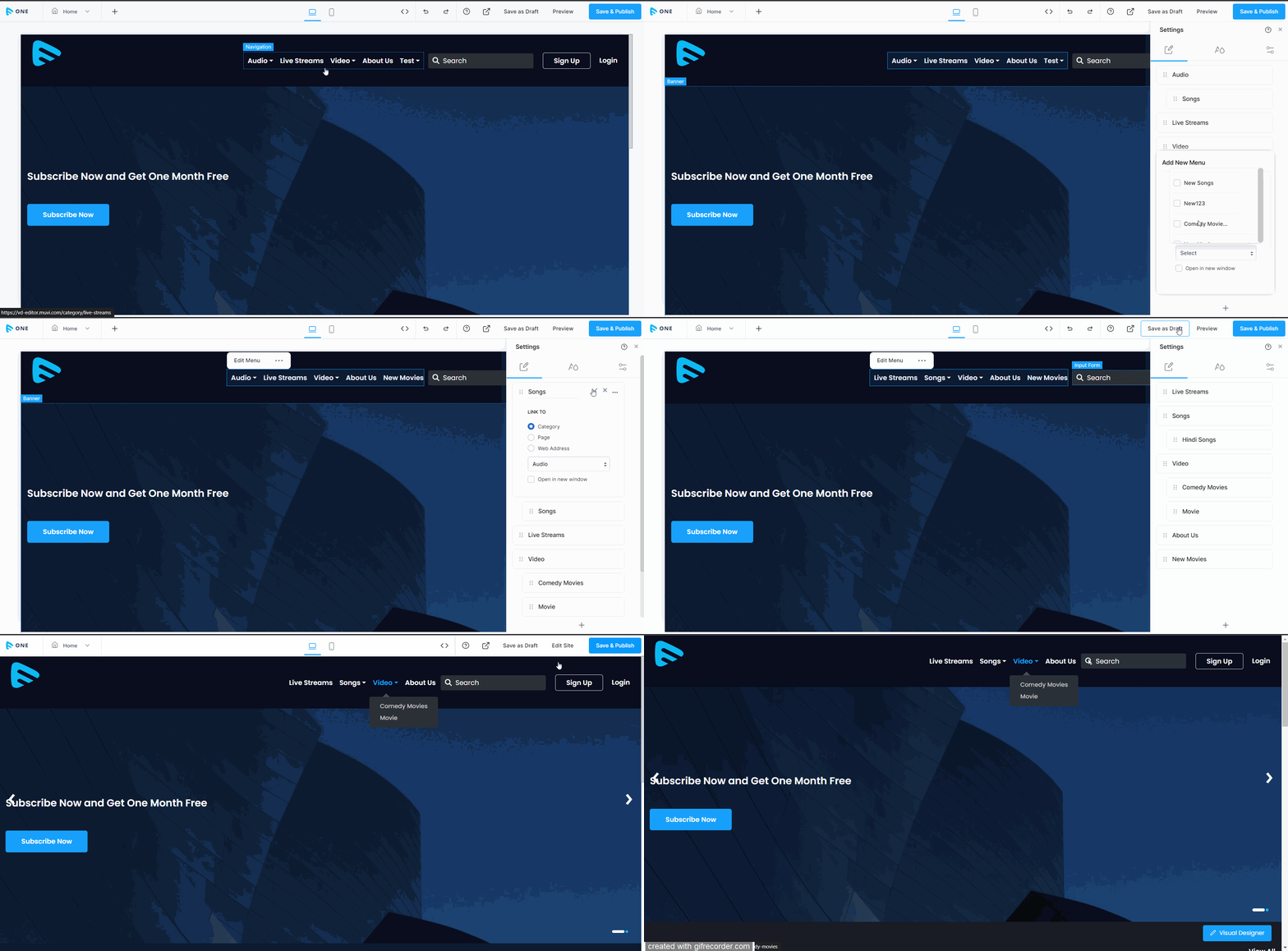
You can customize the top bar menu of your website. You can add content categories, static pages, links, etc., to the menu. You can easily change the menu order with the drag-and-drop action.
- To configure the menu, navigate to “Website & Apps” -->” Templates” in the Dashboard.
- Under the template, click on “Customize”.
- The Visual Designer (VD) will open.
- Click on “Navigation” on the top bar of the website.
- Click on “Edit Menu”.
- On the right-hand side pane, click on the "+" icon to add a new menu item.
- Type the menu name.
- Select the option (e.g., Category, Page, Web Address) where you want the menu item to link.
- Click on the tick mark to add the new menu item.
- Click on the 3 dots on the right side of a menu item.
- Click on "Remove" to delete the menu item.
- Click on "Duplicate" to duplicate the menu item.
- To edit a menu name, click on the edit icon on the right side of a menu item.
- Type the menu name and click on the tick mark to rename the menu item.
- On the right-hand side pane, you can drag and drop the items to reorder the menu.
- You can add links and redirect to any menu item.
- To create a drop-down menu, drag a menu and drop it inside another menu.
- Click on “Save as Draft” in the top right corner to save the changes.
- Click on “Preview” to preview how the menu appears on your website.
- Click on “ Save and Publish” in the top right corner to publish the changes.
- Click on “Done” or "Visit Website" to view the changes on the front-end website.
Customize the Settings of Different Pages
You can customize the static and dynamic pages already available on the website. For example, you can change the homepage layout and settings, or the about us page settings, etc. You can even add new static and/or dynamic pages to your website.
- To customize pages, navigate to “Website & Apps” -->” Templates” in the Dashboard.
- Under the template, click on “Customize”.
- The Visual Designer (VD) will open.
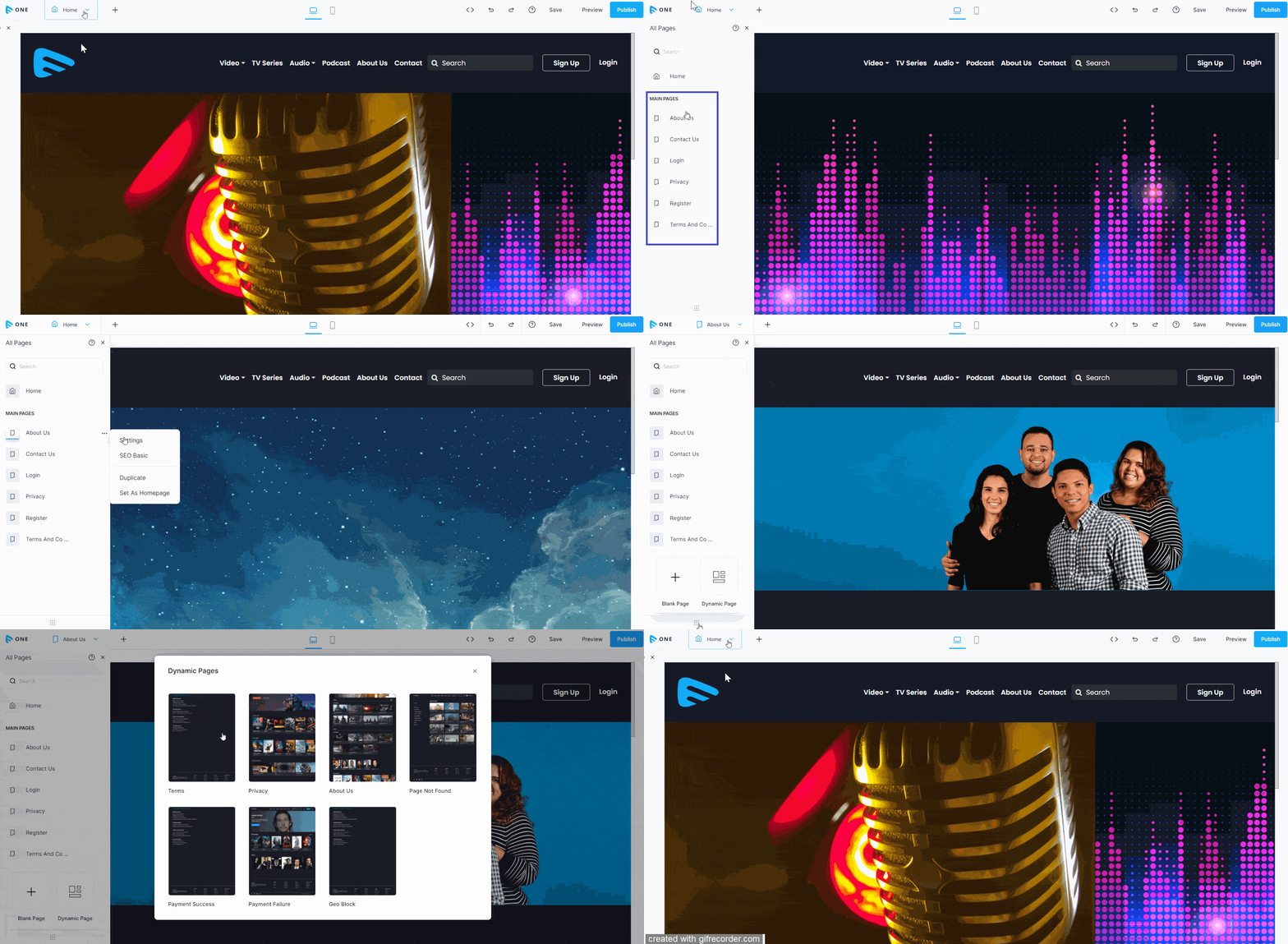
- In the top left corner, click on “Home”.
- You can view the list of pages.
- Click on the 3 dots on the right-hand side of a page.
- You can see different options like “Settings”, “SEO Basic”, “Duplicate”, and “Set as Homepage”.
- Click on “Settings” to change the “Page Name” and “Permalink”.
- Click on the “SEO Basic” tab to set the SEO variables like “Meta Title”,” Meta Description”, ‘Keywords”, and “Scripts”.
- Click on “Duplicate” to create a duplicate page.
- Click on “Set as Homepage” if you want a specific page (like About Us, Register, etc.) as your homepage.
- You can create new static pages by clicking on the “+” icon.
- To create the dynamic pages, click on “Dynamic Page”.
- Click on “Save” in the top right corner to save the changes.
- Click on “Preview” to preview how the page appears on your website.
- Finally, click on “Publish” in the top right corner to publish the changes. Click on “Done”.
How to Add a New Page to Your Website
- To add a new page to your website, navigate to “Website & Apps” -->” Templates” in the Dashboard.
- Under the active template, click on “Customize”.
- The Visual Designer (VD) will open.
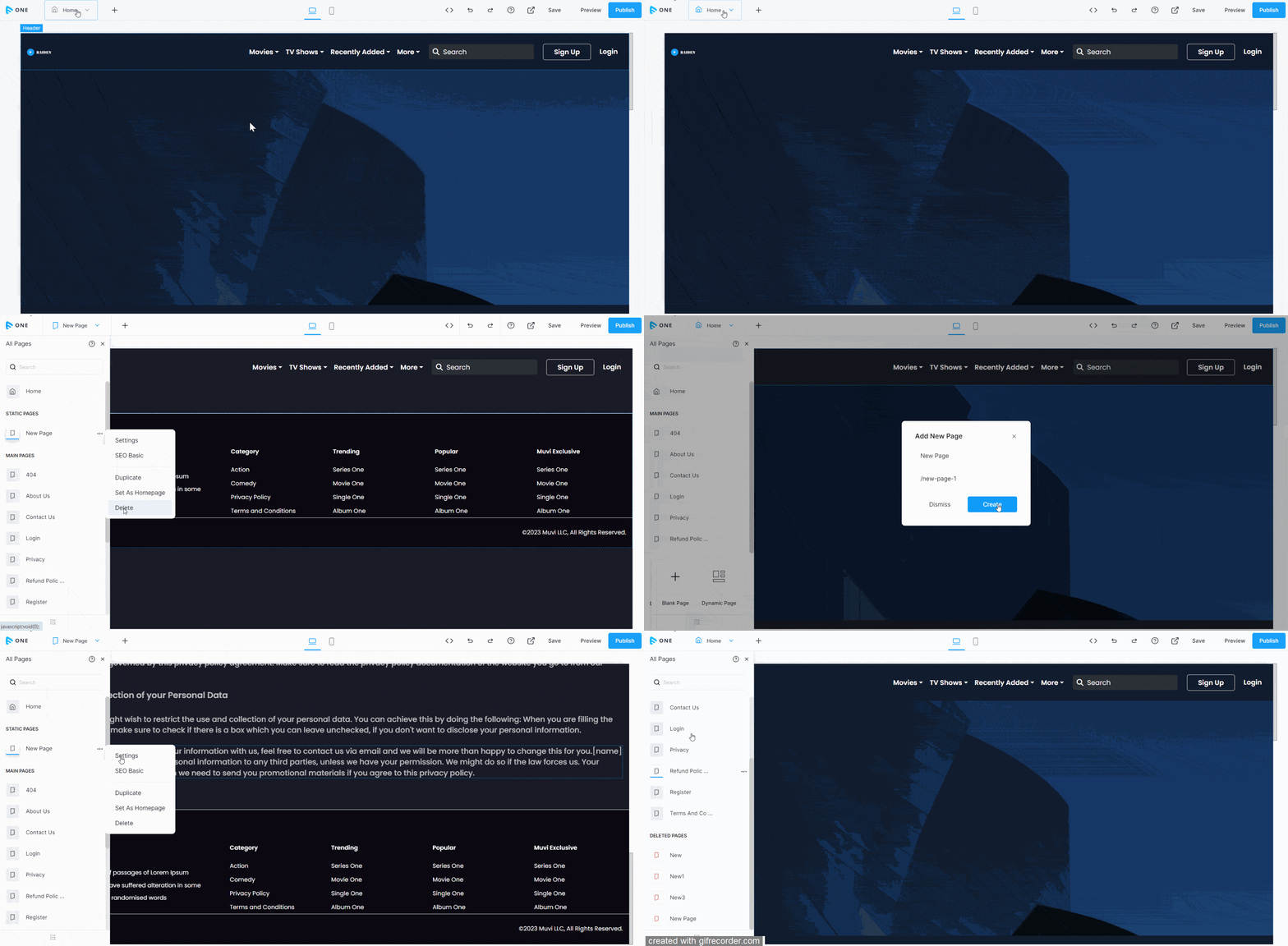
- In the top left corner, click on “Home”.
- You can view the list of pages.
- Scroll to the bottom and click on the "Page Icon".
- Click on the "+" icon to add a new blank static page.
- Type the "Page Name" and click on "Create".
- A new static page will be created, and it will be visible under "Home". By clicking on the page, you can customize it according to your requirements.
- To delete a static page, click on the 3 dots on the right-hand side of the page.
- Click on "Delete" and then "Proceed" to delete the page.
- To add a dynamic page, click on the "Dynamic Page Icon".
- Type the "Page Name" and click on "Create".
- A new static page will be created, and it will be visible under "Home". By clicking on the page, you can customize it according to your requirements.
- To delete a static page, click on the 3 dots on the right-hand side of the page.
- Click on "Delete" and then "Proceed" to delete the page.
Adding Social Media Pages to Website
You can add different Social Media page links (Facebook, Twitter, Instagram, etc.) to your website/app so that your subscribers/visitors can visit your Social Media pages by clicking on these links on your website/app.
- To add social media pages to your website, navigate to “Website & Apps” -->” Templates” in the CMS.
- Under the template, click on “Customize”.
- The Visual Designer (VD) will open.
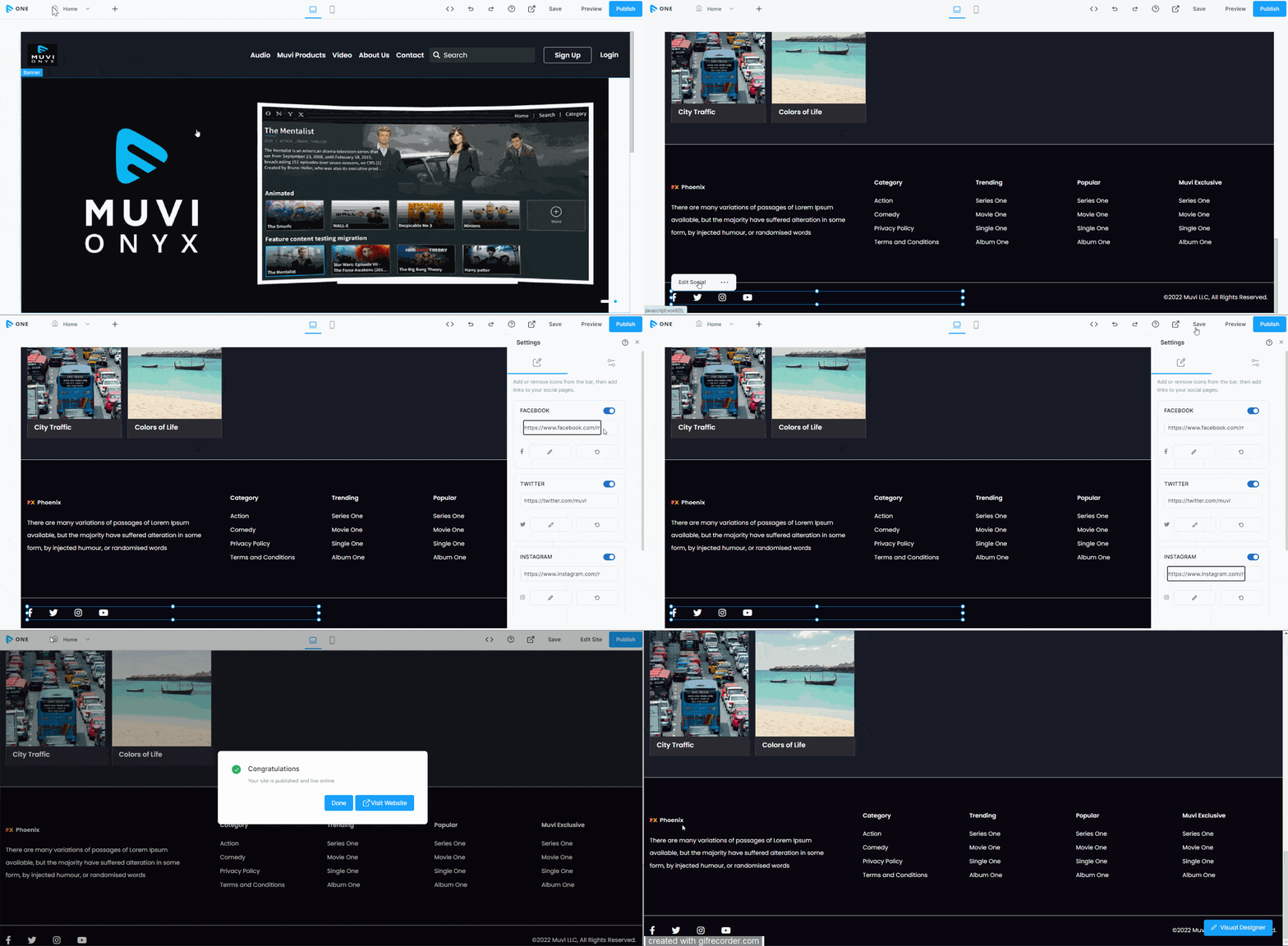
- Scroll down to the bottom.
- Click on the social media icons.
- Click on "Edit Social".
- On the right-hand side, click on the "Disable" button to disable any social media icon on the website.
- Type the social media page link in the box.
- Click on "Save" to save the changes.
- Click on "Preview" to preview the changes.
- Click on "Publish" to publish the changes.
Using the Code Editor to Customize Your Website
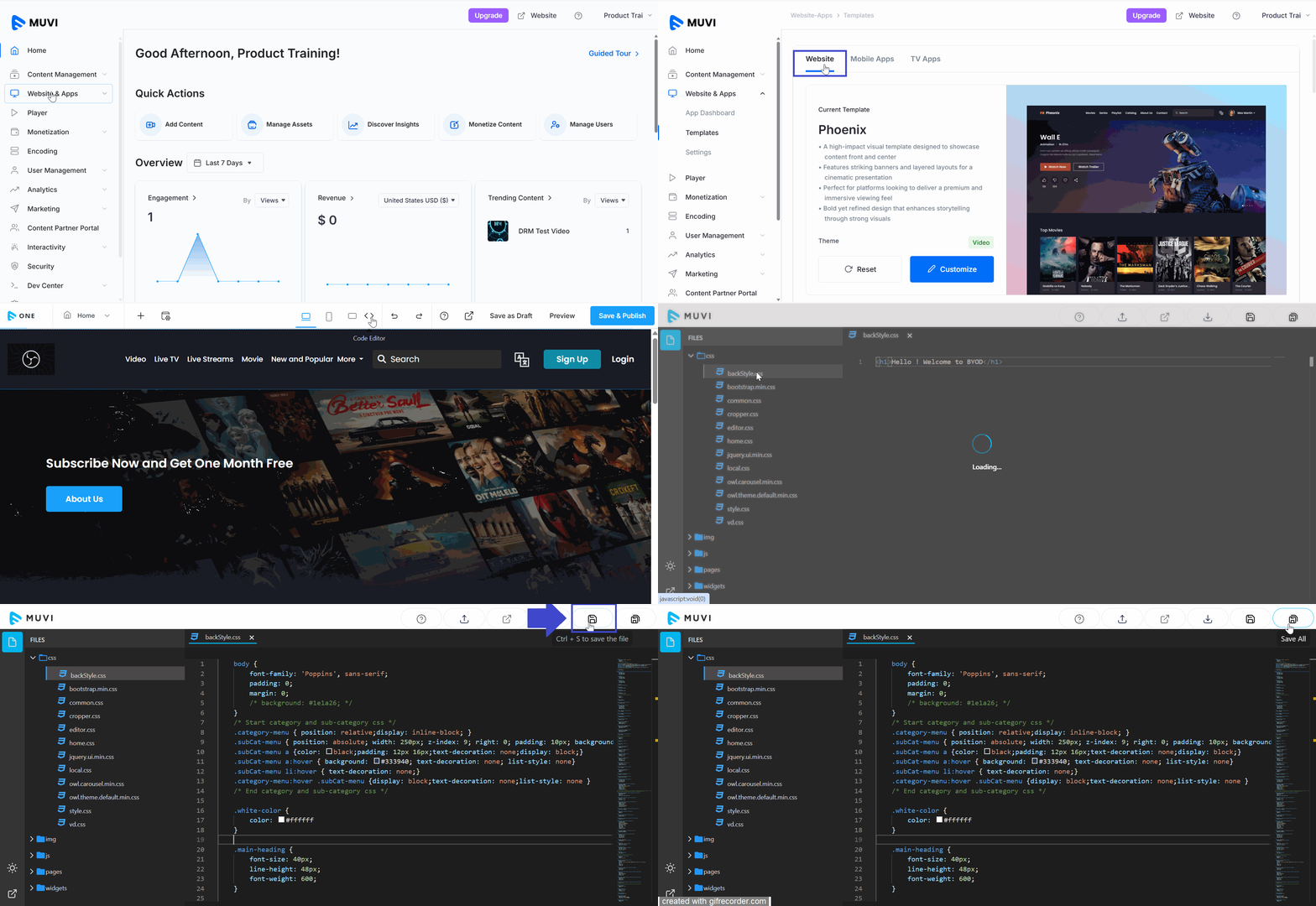
You can also customize your website using the “Code Editor”. You can write code and make changes to different sections of your website. You can access the Code Editor from the Visual Designer page.
- To access the Code Editor, navigate to “Website & Apps” -->” Templates” in the Dashboard.
- Under the active template, click on “Customize”.
- The Visual Designer (VD) will open.
- Click on the Code Editor icon “<>” in the top right corner.
- You can view all the folders on the left-hand side.
- Expand the folders to view the files and then you can make changes to these files.
- Click on “Save” in the top right corner to save the changes you have made to the code.
- You can also change the dark theme to a light theme and change the code layout.
How to Check the Desktop/Mobile/Tab View
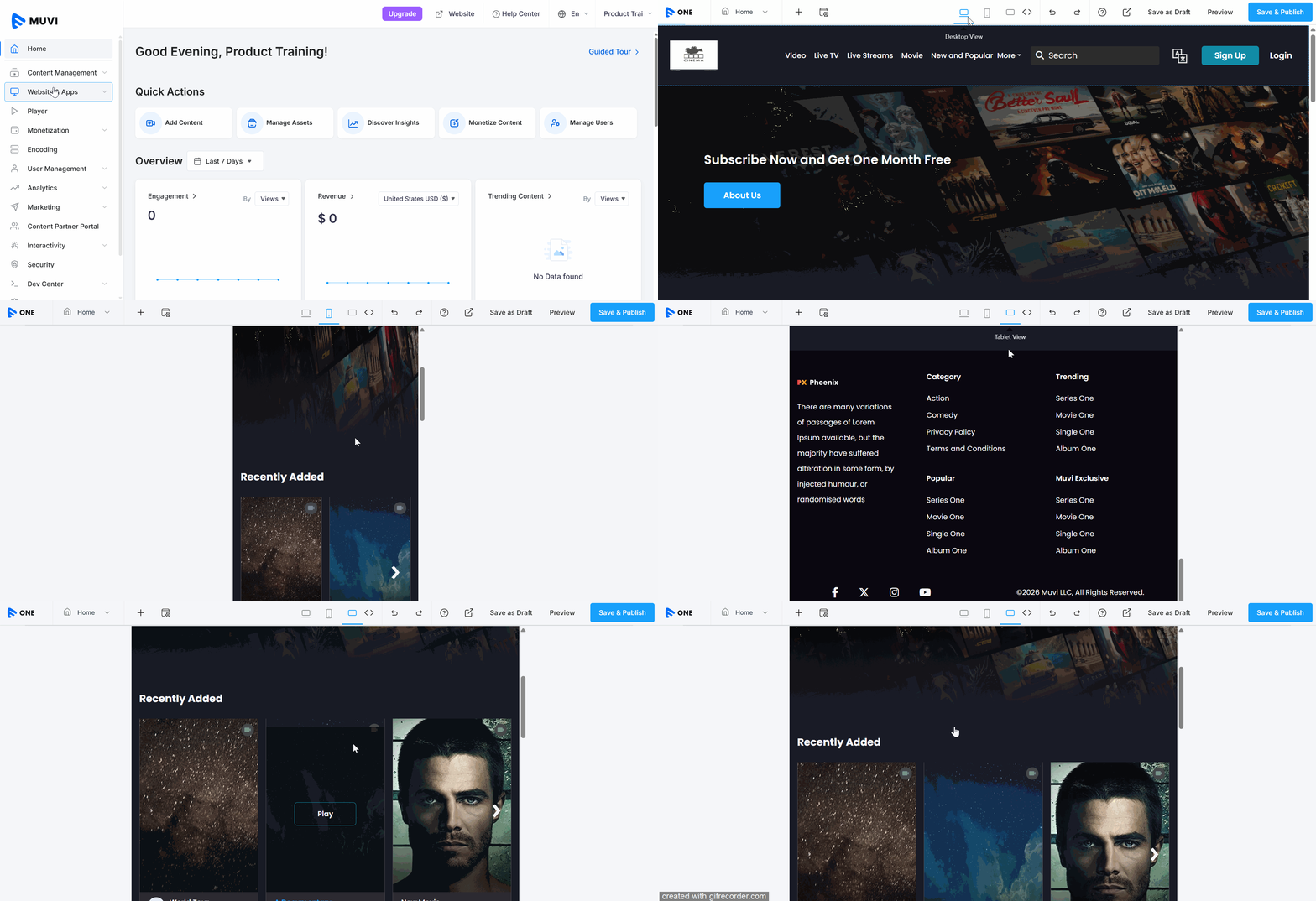
The Visual Designer lets you see how your website looks on a desktop browser, mobile browser, and Tab browser.
- To check the mobile view of your website, navigate to “Website & Apps” -->” Templates” in the CMS.
- Under the template, click on “Customize”.
- The Visual Designer (VD) will open.
- Click on the "Desktop View" icon to see how your website is going to look in the desktop browser.
- Click on the “Mobile View” icon to see the mobile view of your website.
- Click on the "Tab View" to see the tab view of your website.
How to Add Elements (Widgets) to Your Website
Widgets are a handy and simple way to add Flash to your website. Whether you wish to add a simple banner/advertisement, a piece of information, a text, or a button to your website, you can do it with widgets.
Adding Text
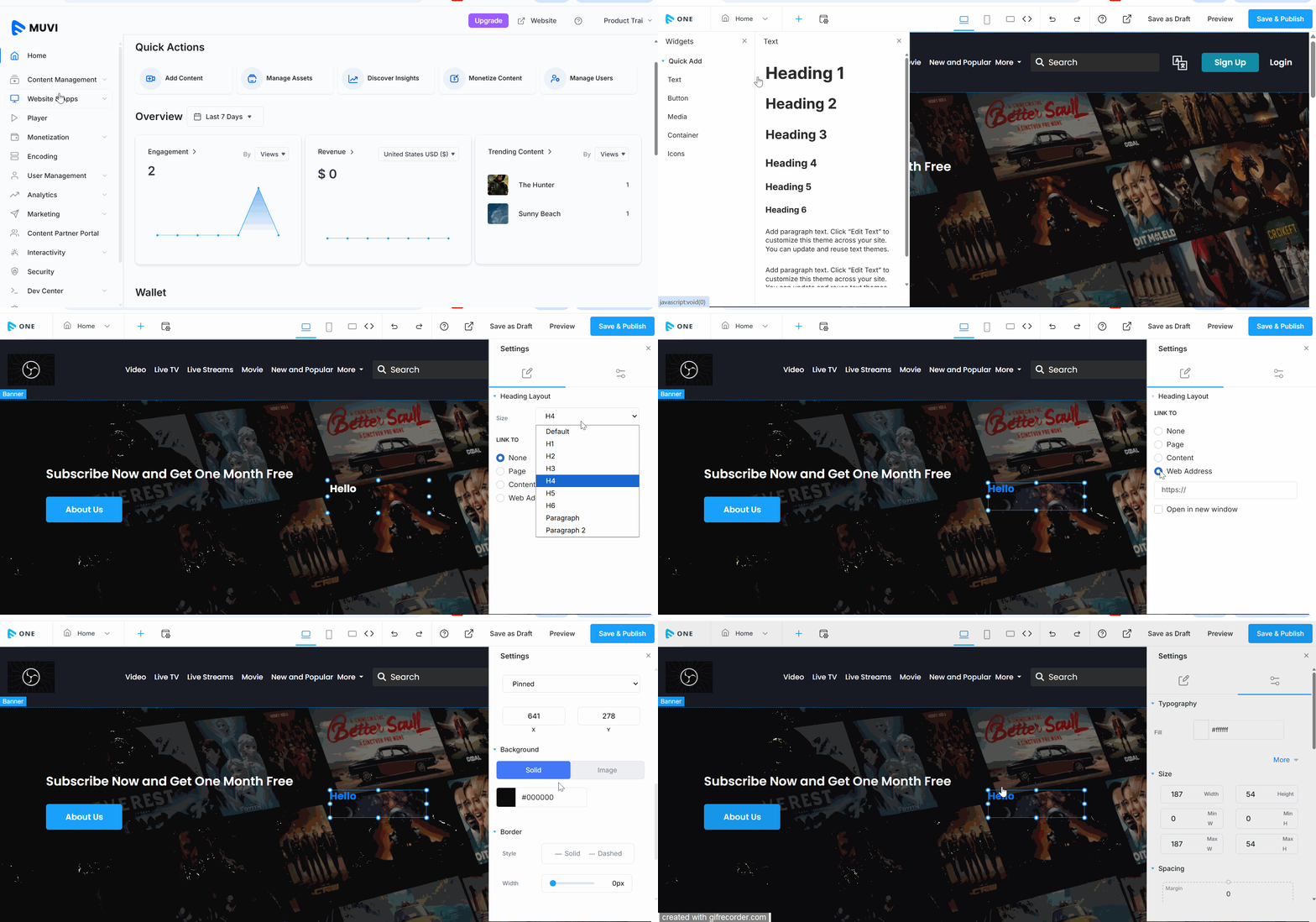
- To add text to any page, navigate to “Website & Apps” -->” Templates” in the Dashboard.
- Under the template, click on “Customize”.
- The Visual Designer (VD) will open.
- Click on the "+" icon (Add Elements) on the top left side of the Visual Designer.
- Under "Widgets," click on "Quick Add".
- Click on "Text" to add text to your website.
- Select the text heading from H1-H6.
- Double-click on the canvas (webpage) anywhere to add the text.
- Type the text.
- If you want to delete the text, click on the "Delete" option on the floating editor.
- Drag and drop to change the text position.
- Click on the advanced editor on the right-hand side to customize the text. You can change the text color, text size, change border, padding, opacity level, etc.
- Click on "Save" to save the changes.
- Click on "Preview" to preview the changes.
- Click on "Publish" to publish the changes.
Adding Button
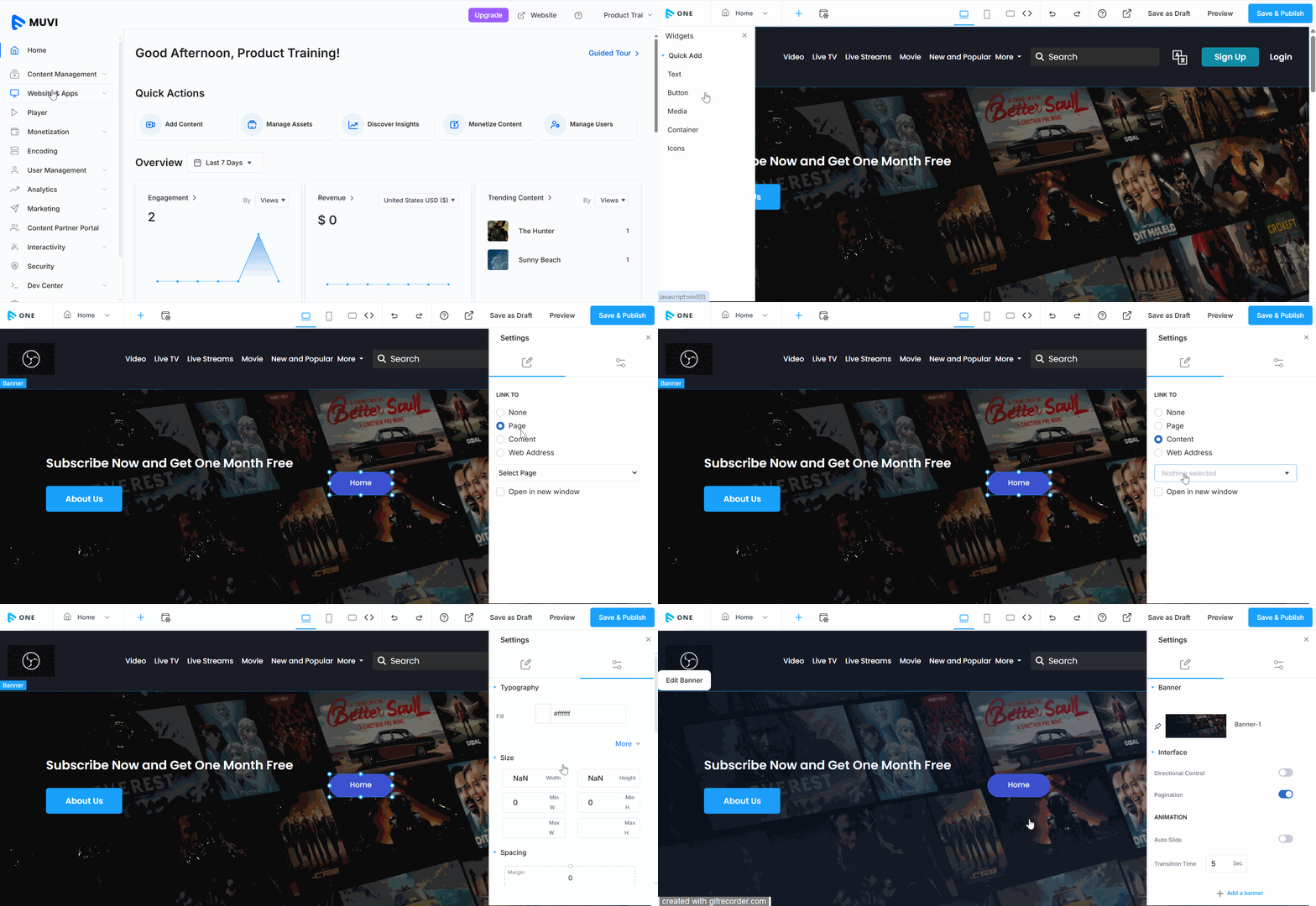
- To add text to any page, navigate to “Website & Apps” -->” Templates” in the Dashboard.
- Under the template, click on “Customize”.
- The Visual Designer (VD) will open.
- Click on the "+" icon on the top left side of the Visual Designer.
- Under "Widgets," click on "Quick Add".
- Click on "Button" to add text to your website.
- Select the button style.
- Click on the canvas (webpage) anywhere to add the button.
- Type the button text.
- If you want to delete the button, click on the "Delete" option on the floating editor.
- Drag and drop to change the text position of the button.
- Under the editor, select "Page", to link the button to a specific page (e.g., Homepage, About Us, Contact Us, etc.).
- To link the button to an external URL, select "Web Address" and type the URL of the site.
- Select "Open in New Window", if you want the website to open in a new window.
- Click on the advanced editor on the right-hand side to customize the button.
- You can customize the fill, size, position, border, and opacity level of the button.
- Click on "Save" to save the changes.
- Click on "Preview" to preview the changes.
- Click on "Publish" to publish the changes.
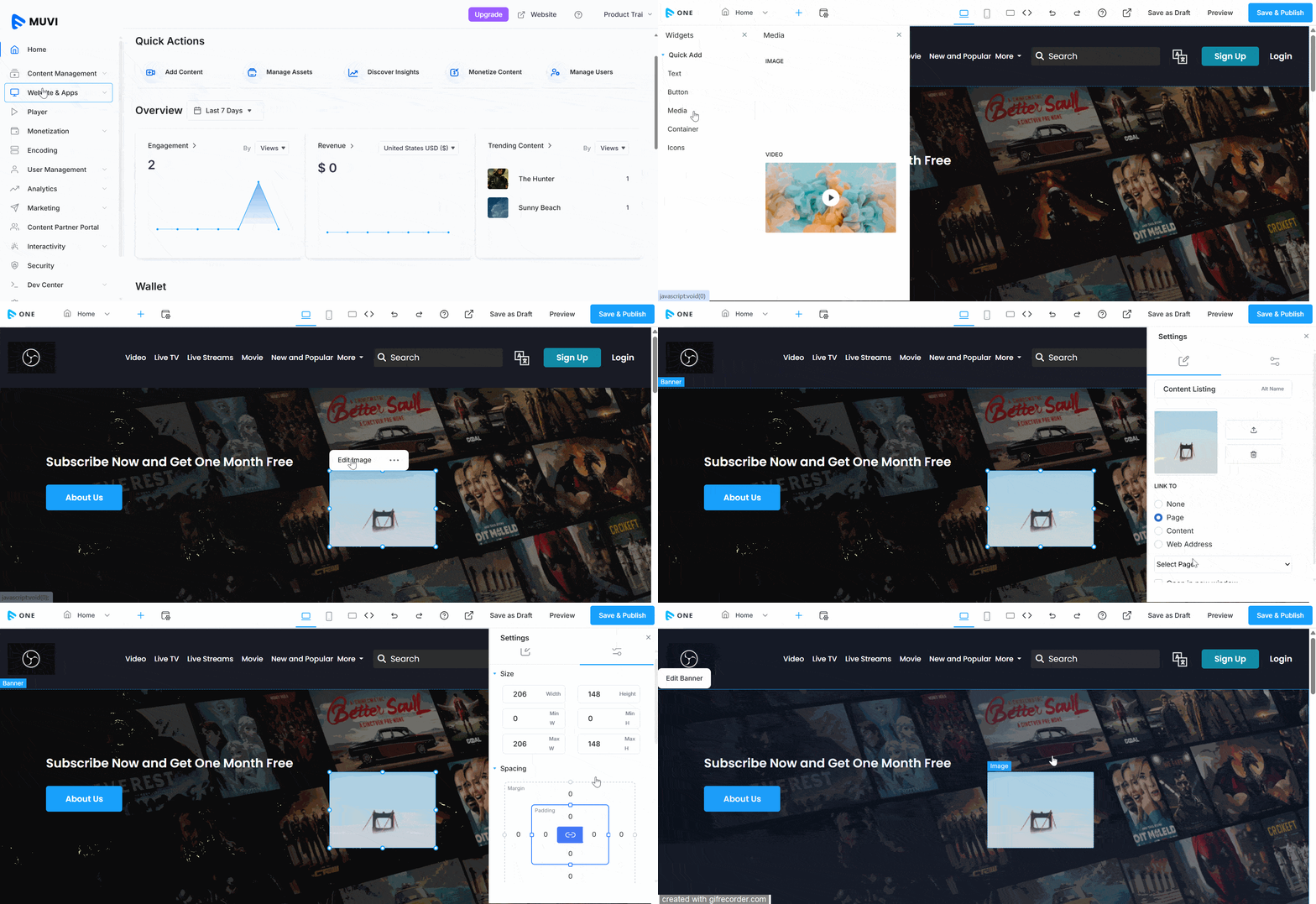
Adding Media (Image, Video)
You can add images and/or videos to your website. You place the image or video on any part of your webpage. Multiple images/videos can also be added to your website. You can also link the image/video to any “Content (video, audio)” or any other “Page” on your website or to any third-party website.
- To add media to any page, navigate to “Website & Apps” -->” Templates” in the CMS.
- Under the template, click on “Customize”.
- The Visual Designer (VD) will open.
- Click on the "+" icon on the top left side of the Visual Designer.
- Under "Widgets," click on "Quick Add".
- Click on "Media" to add an image/video to your website.
- Click on the "Image" to add an image. You can add a round or square image.
- You can drag and drop to change the image position on the page.
- If you want to delete the image, click on the "Delete" option on the floating editor.
- On the right-hand side, click on the "Upload Icon" to upload an image from your device or from the Asset Library.
- Type the ALT tag/name of the image.
- Drag the border on the image to adjust its size.
- To delete the image, click on the "Trash Icon" under the editor.
- Click on the advanced editor on the right-hand side to customize the image.
- You can customize the image's fill, size, position, border, and opacity.
- Click on "Save" to save the changes.
- Click on "Preview" to preview the changes.
- Click on "Publish" to publish the changes.
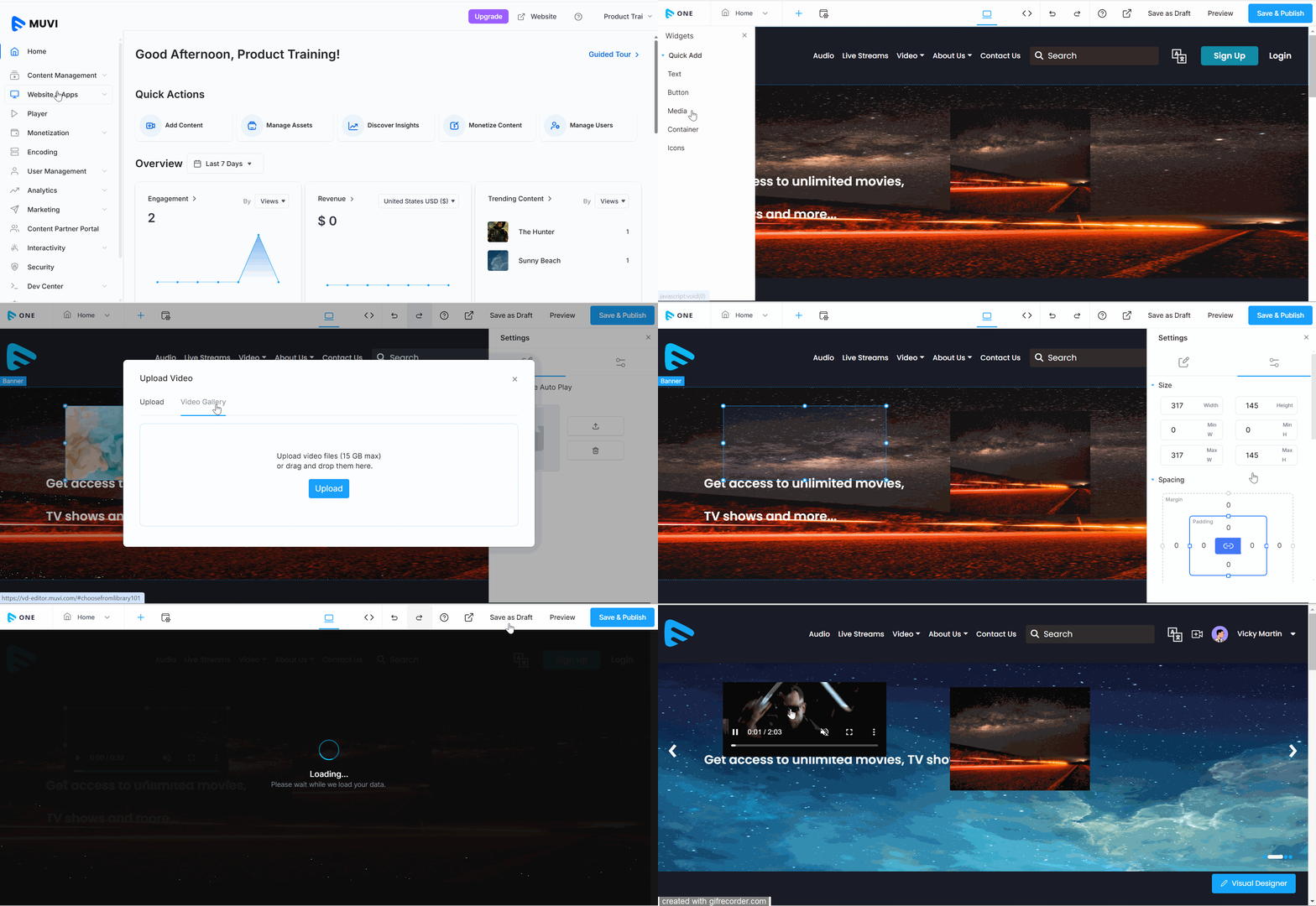
To upload a video,
- Click on "Media" to add an image/video to your website.
- Click on "Video" to add a video.
- You can drag and drop to change the video position on the page.
- If you want to delete the video, click on the "Delete" option on the floating editor.
- On the right-hand side click on the "Upload Icon" to upload a video from your device or from the Asset Library.
- Drag the border on the video to adjust its size.
- Select "Muted" if you want the video to start in mute.
- Select "Enable Autoplay" if you want the video to start automatically when the page loads.
- Select "Controls" if you want to show the control option on the video (e.g., play, pause, stop, seek bar)
- To delete the video click on the "Trash Icon" under the editor.
- Click on the advanced editor on the right-hand side to customize the video.
- You can customize the fill, size, position, border, and opacity level of the video.
- Click on "Save" to save the changes.
- Click on "Preview" to preview the changes.
- Click on "Publish" to publish the changes.
Adding a Container to Your Website
You can add different types of containers to your website. These containers can help you divide your webpage into multiple sections. Inside the container, you can add text, images, videos, etc.
- To add a container to any page, navigate to “Website & Apps” -->” Templates” in the CMS.
- Under the template, click on “Customize”.
- The Visual Designer (VD) will open.
- Click on the "+" icon on the top left side of the Visual Designer.
- Under "Widgets," click on "Quick Add".
- Click on “Container”.
- You can see different types of containers on the right side.
- Click on a container to select it.
- The container will be added to your webpage.
- You can add multiple containers to a page if it is required.
- If you want to delete the container, click on the "Delete" option on the floating editor.
- Drag and drop to change the container position.
- Click on the advanced editor on the right-hand side to customize the container.
- Click on "Save" to save the changes.
- Click on "Preview" to preview the changes.
- Click on "Publish" to publish the changes.
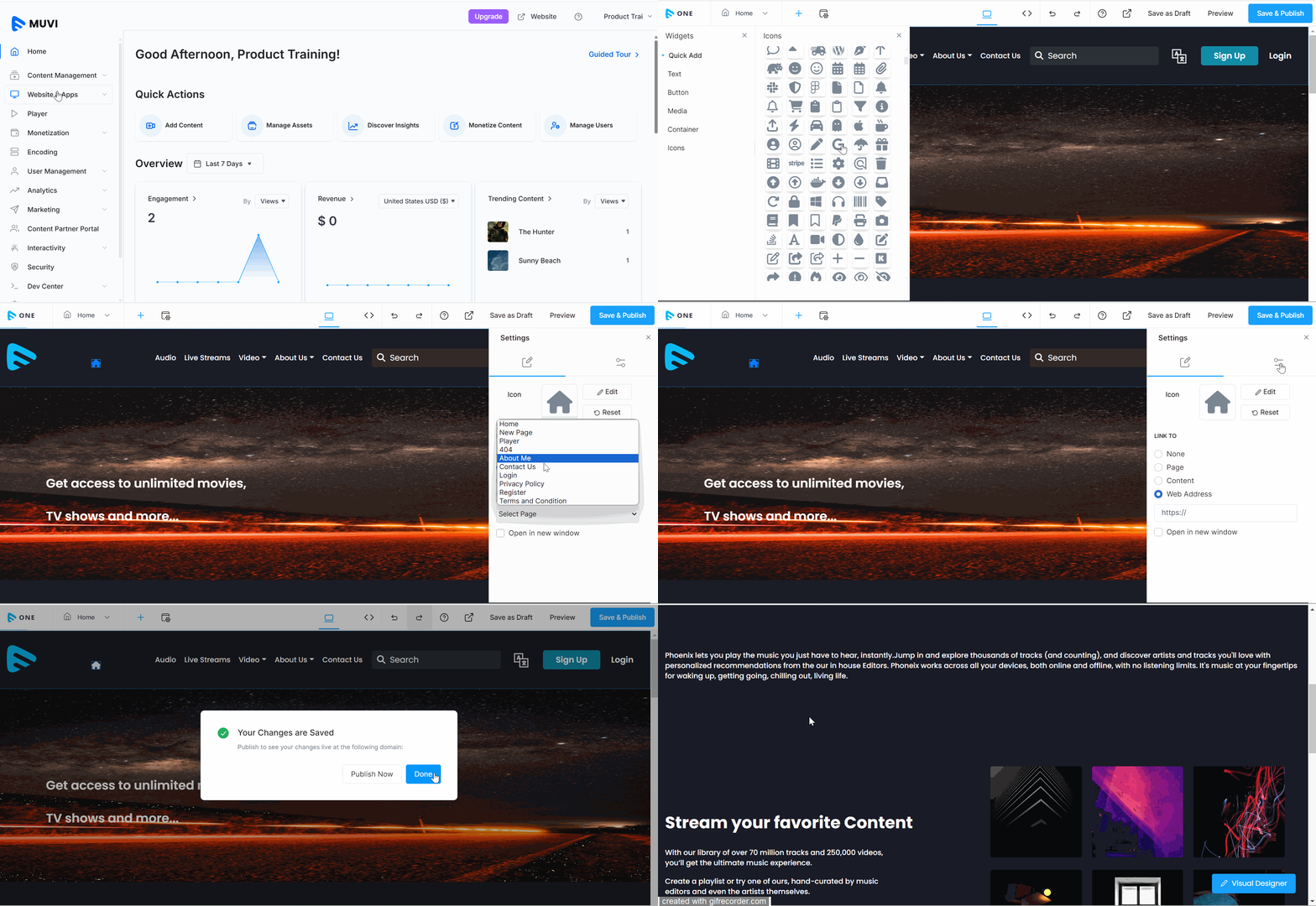
Adding Icons to Your Website
You can add icons to your website. Select from different types of icons and add them to your website as per your requirements. Multiple icons can also be added to your website. You can also link the icons to any “Content (video, audio)” or any other “Page” in your website or any third-party website.
- To add icons to any page, navigate to “Website & Apps” -->” Templates” in the Dashboard.
- Under the template, click on “Customize”.
- The Visual Designer (VD) will open.
- Click on the "+" icon on the top left side of the Visual Designer.
- Under "Widgets," click on "Quick Add".
- Click on “Icons”.
- Click on an icon to select it and add it to your website. You can link the icon to a Content Category, web page, or Third-Party website. Multiple icons can also be added.
- You can also edit or remove the icon.
- Drag and drop to change the icon position.
- Click on the advanced editor on the right-hand side to customize the icon.
- Click on "Save" to save the changes.
- Click on "Preview" to preview the changes.
- Click on "Publish" to publish the changes.