How to Integrate Zapier with Muvi One
Product: Muvi OneMuvi One and Zapier Integration Examples
Creating Outbound Actions and Triggers
Creating Inbound Actions and Triggers
Introduction
integrating Zapier with Muvi One can expand the capabilities of your streaming platform by connecting it with thousands of other apps and services.
Zapier is an online automation tool that connects your favorite apps, such as Gmail, Slack, Mailchimp, and hopefully, Muvi One, to automate repetitive tasks without coding or relying on developers to build the integration. You can create both outbound (Muvi One à Other Apps) and inbound (Other Apps àMuvi One) actions and triggers.
Muvi One and Zapier Integration Examples
Here are a few examples of what you can do with Muvi One and Zapier integration:
1. New Subscriber Notification:
- Trigger: When a new user subscribes to your service on Muvi One.
- Action: Send a notification to a specified Slack channel or email address.
2. Content Management:
- Trigger: When new content is added to Muvi One.
- Action: Automatically send an email to your Gmail account
3. Create New Users:
- Trigger: Create a new user account in Mailchimp
- Action: The user is added to Muvi One
Creating Outbound Actions and Triggers
Integration Steps:
1. Create a Zapier Account:
-
- If you haven't already, sign up for a Zapier account.
2. Access the Muvi One Integration App:
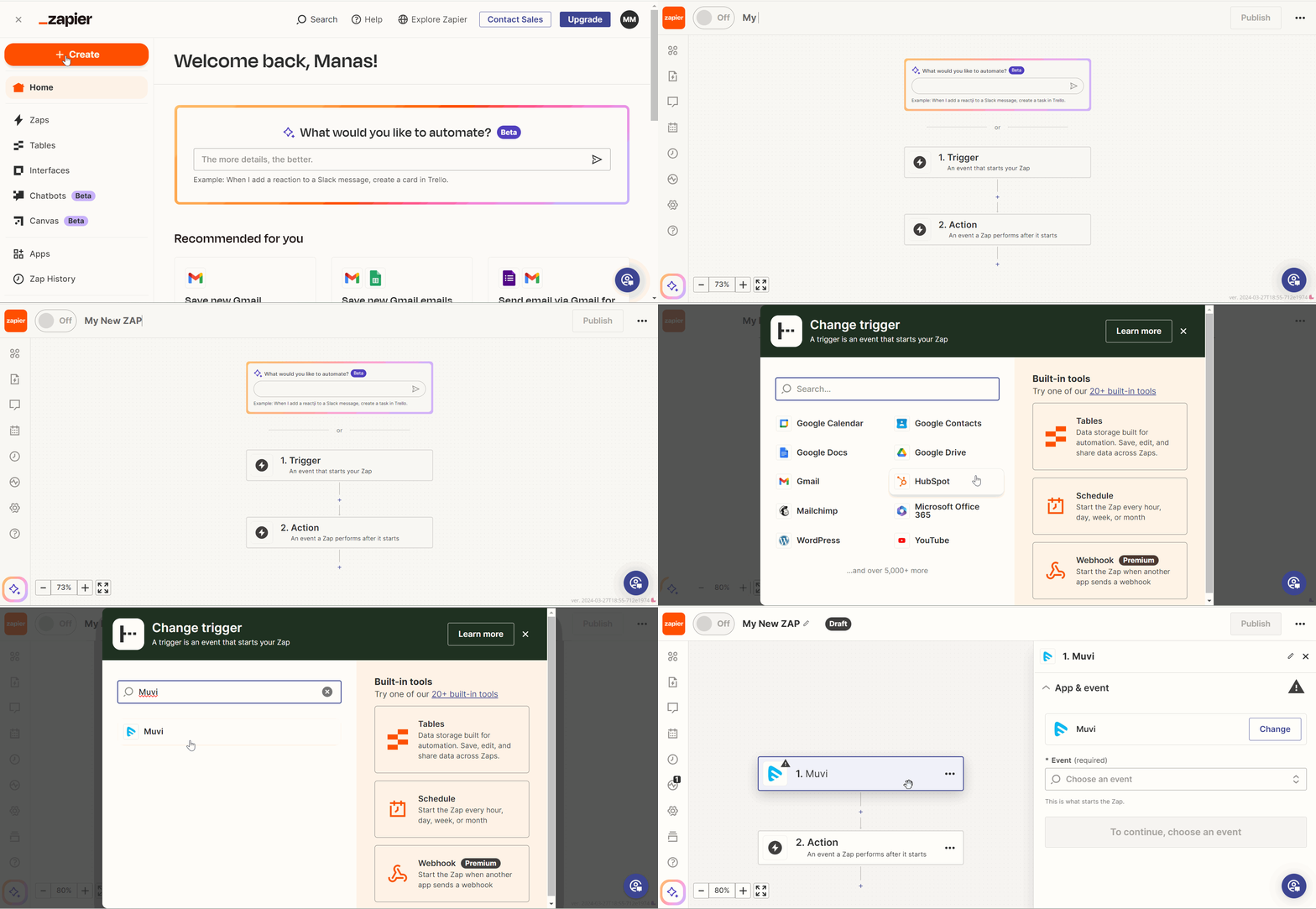
- In Zapier, navigate to "Create" -->” Zaps” and start creating your automation.
- Click on the top left corner (Untitled Zap) and type your “Zap Name”.
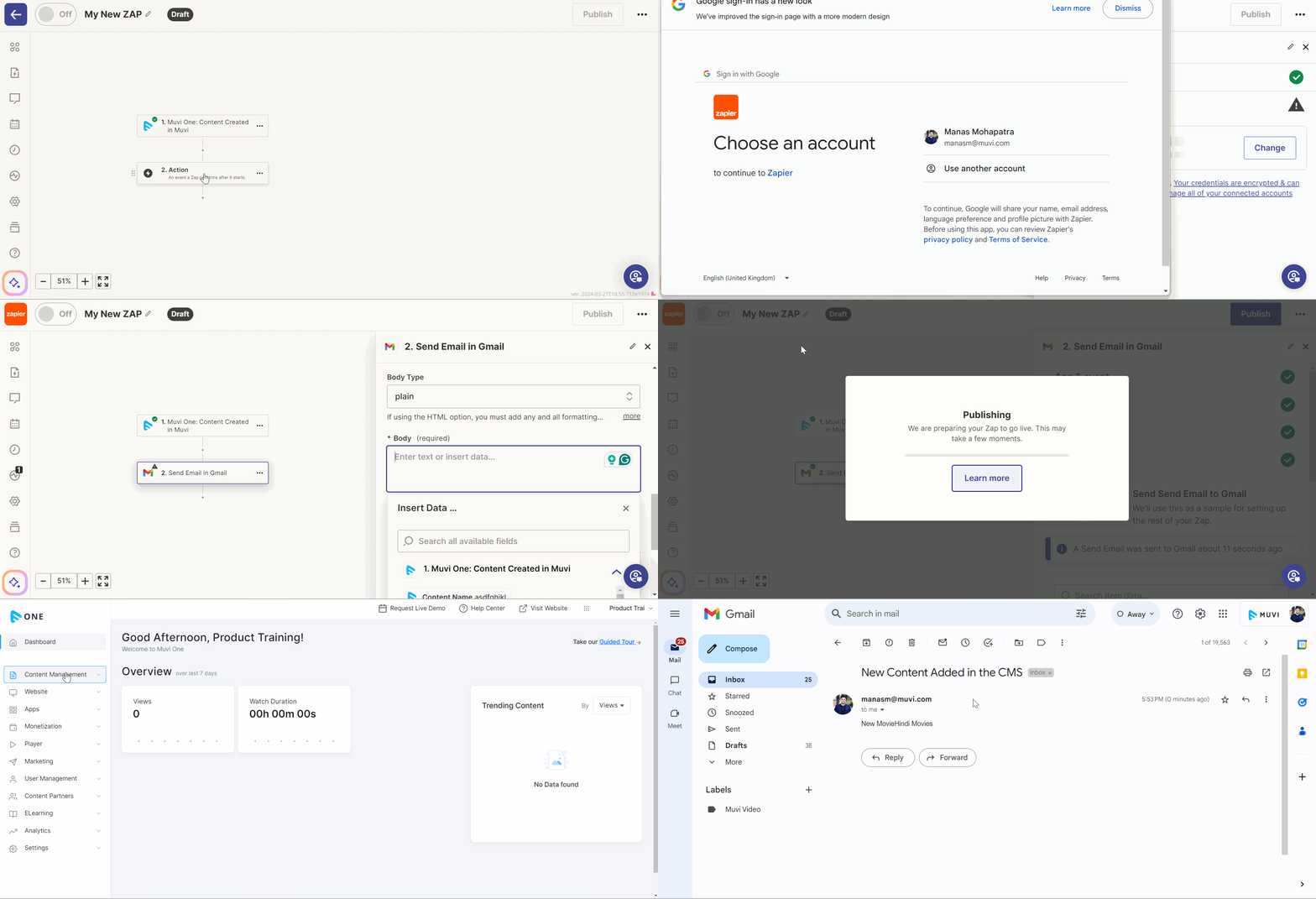
- Click on “Trigger” to set your trigger (means an event in Muvi One that starts your Zap)
- Search for "Muvi" in the App search bar.
3. Connect to Your Muvi One Account
- You'll need to connect your Muvi One account to Zapier.
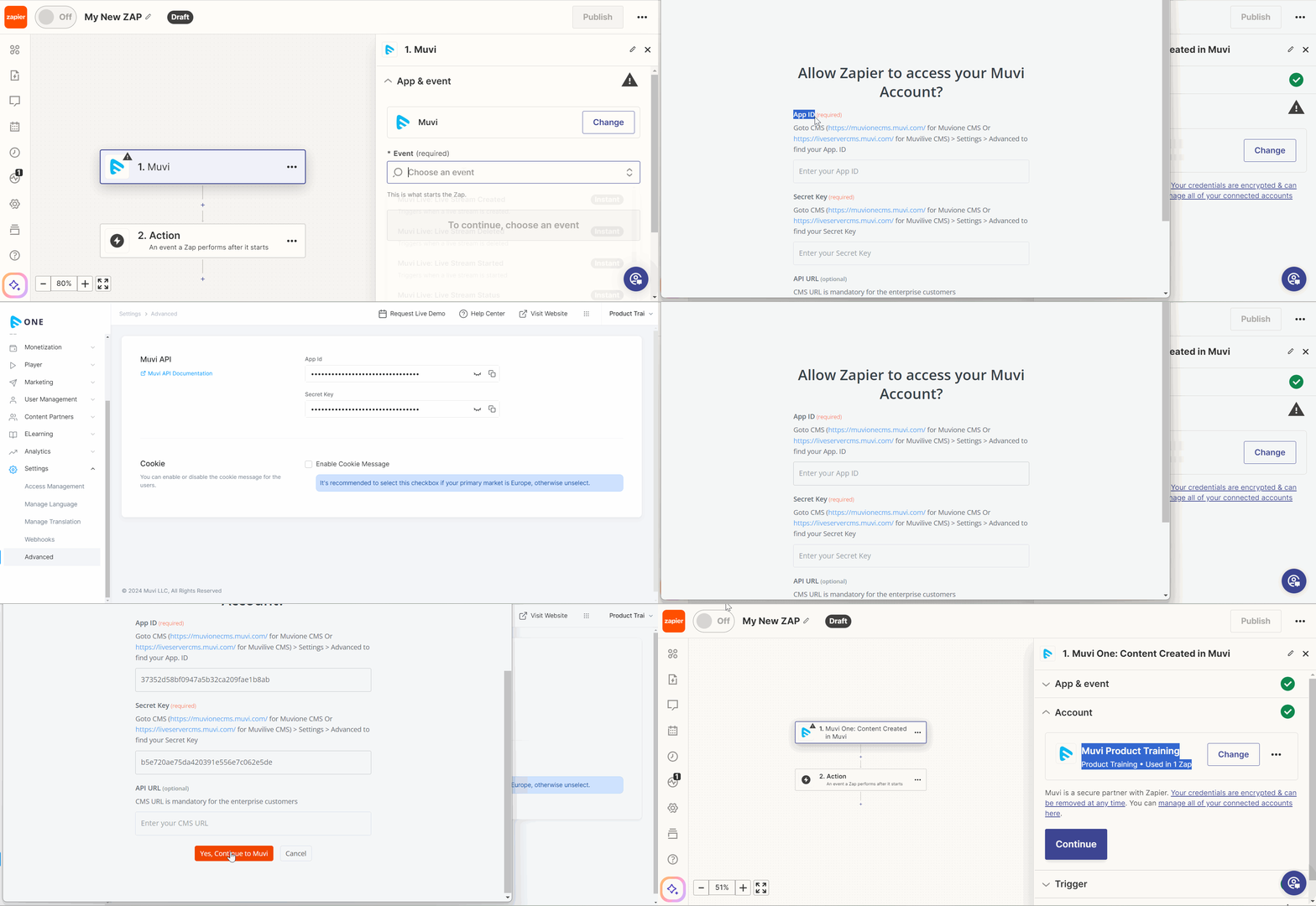
- On the right-hand side, click on the “Search Box” to find the “Event”.
- Click on an event to select it.
- Click on “Continue”.
- Click on “Sign In” to connect to your Muvi One account.
- Go to your Muvi One CMS to get the “App ID” and “Secret Key” (Navigate to “Settings -->” Advanced”).
- Copy the App ID and Secret Key and paste it in the corresponding fields.
- Click on “Yes, Continue to Muvi”.
4.Choose a Trigger
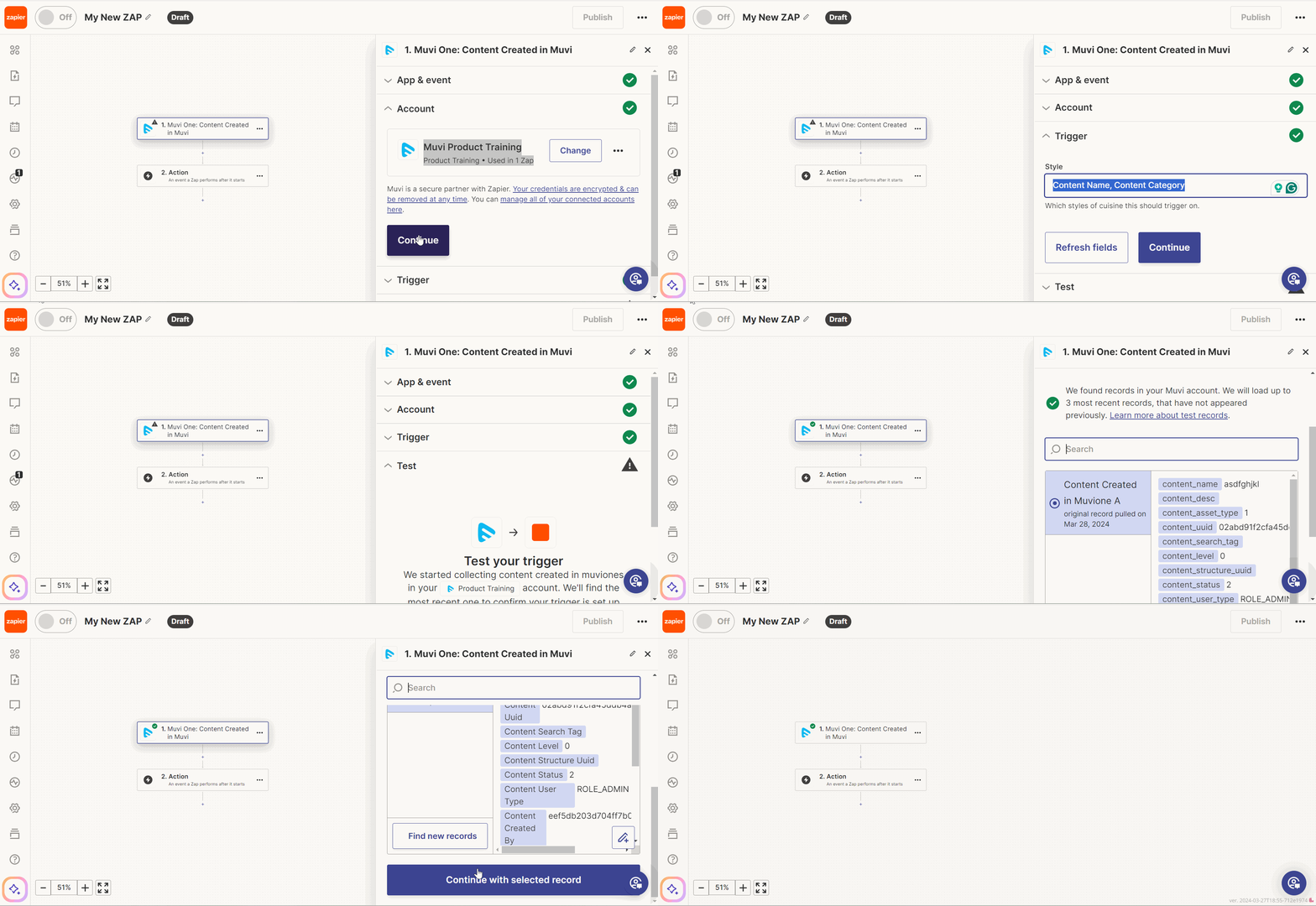
- A trigger is the event in Muvi One that will start the automation.
- For example, you might want to trigger an action when new content is added to the “Content Library”.
- Click on “Continue”.
- Type the “Style”.
- Click on “Continue”.
- Click on “Test Trigger” to test your trigger.
- Click on “Continue with Selected Records”.
5. Set up Actions:
- Actions are the steps you want to take when the trigger event occurs.
- This could be sending a notification to Slack, adding a new subscriber to a Google Sheets spreadsheet, sending a personalized email through Gmail, etc.
- Click on “Action”.
- Search for the action app. For example, Gmail if you want to get an email notification when content is added to the Muvi One CMS.
- On the right-hand side select the “Event” (e.g., Create Label, Send Email, etc.).
- Click on “Continue”.
- Click on “Sign in” to sign in to Gmail.
- Select your Gmail account and click on “Continue”.
- Click on “Allow” to allow Zapier to access your Gmail account.
- Click on “Continue”.
- Type the email address in the “To” field where you want to get the email message.
- You can also add email addresses for the “CC” and “BCC” fields.
- Type the “Subject” of the email.
- In the “Body” select the content fields you want to view.
- Click on “Test Step” to test the steps or you can “Skip Test”.
- Click on “Publish” to publish the “Zap”.
- When new content is added to the Muvi One CMS, you will get an email notification in your Gmail account.
Creating Inbound Actions and Triggers
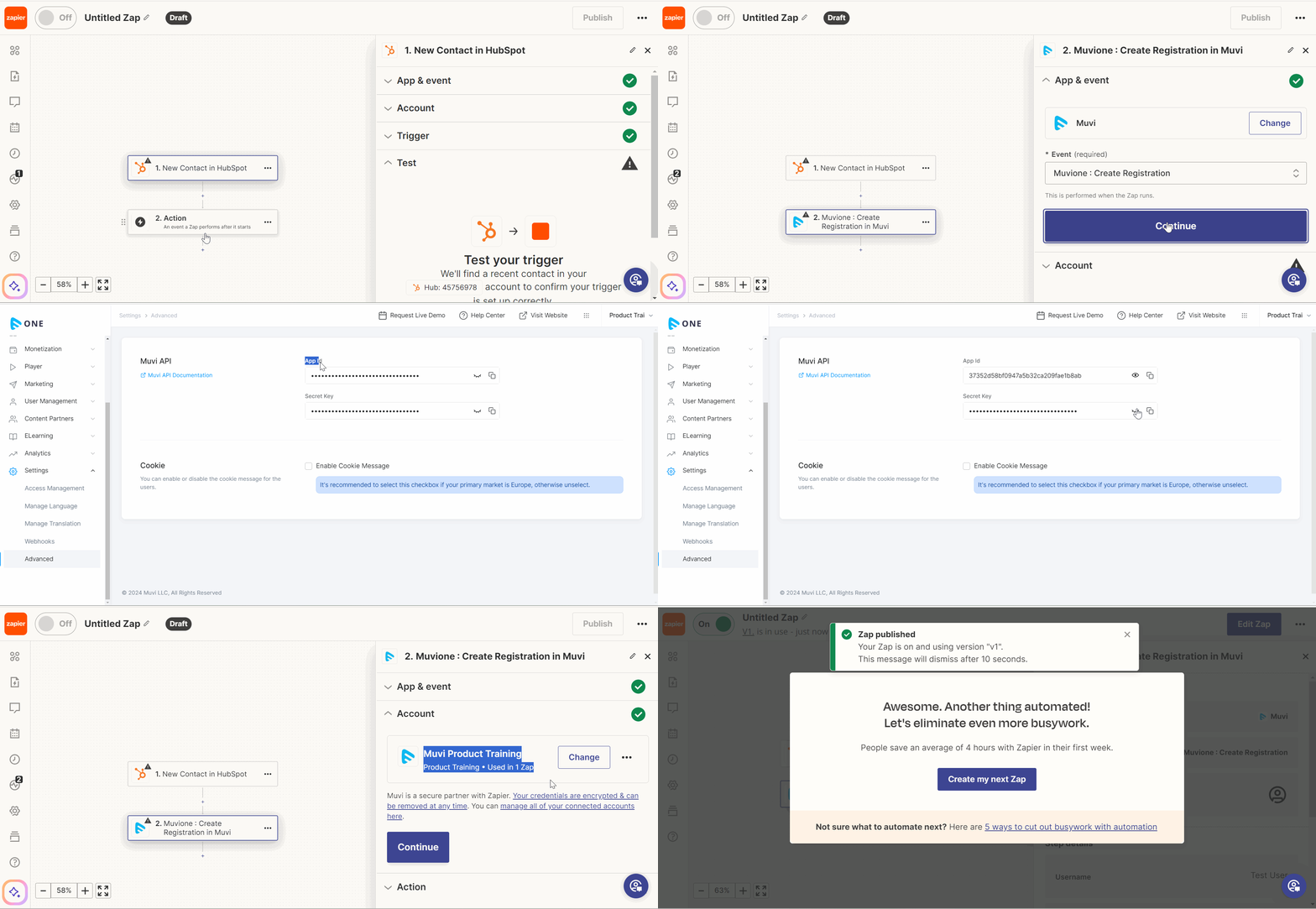
You can create an action in other appsand trigger an event in Muvi One by creating inbound actions and triggers. For example, if you integrate HubSpot with Muvi One when an account is created in HubSpot, a new user account will be added to Muvi One.
Integration Steps:
- Create a Zapier Account:
- If you haven't already, sign up for a Zapier account.
- Access the HubSpot Integration App:
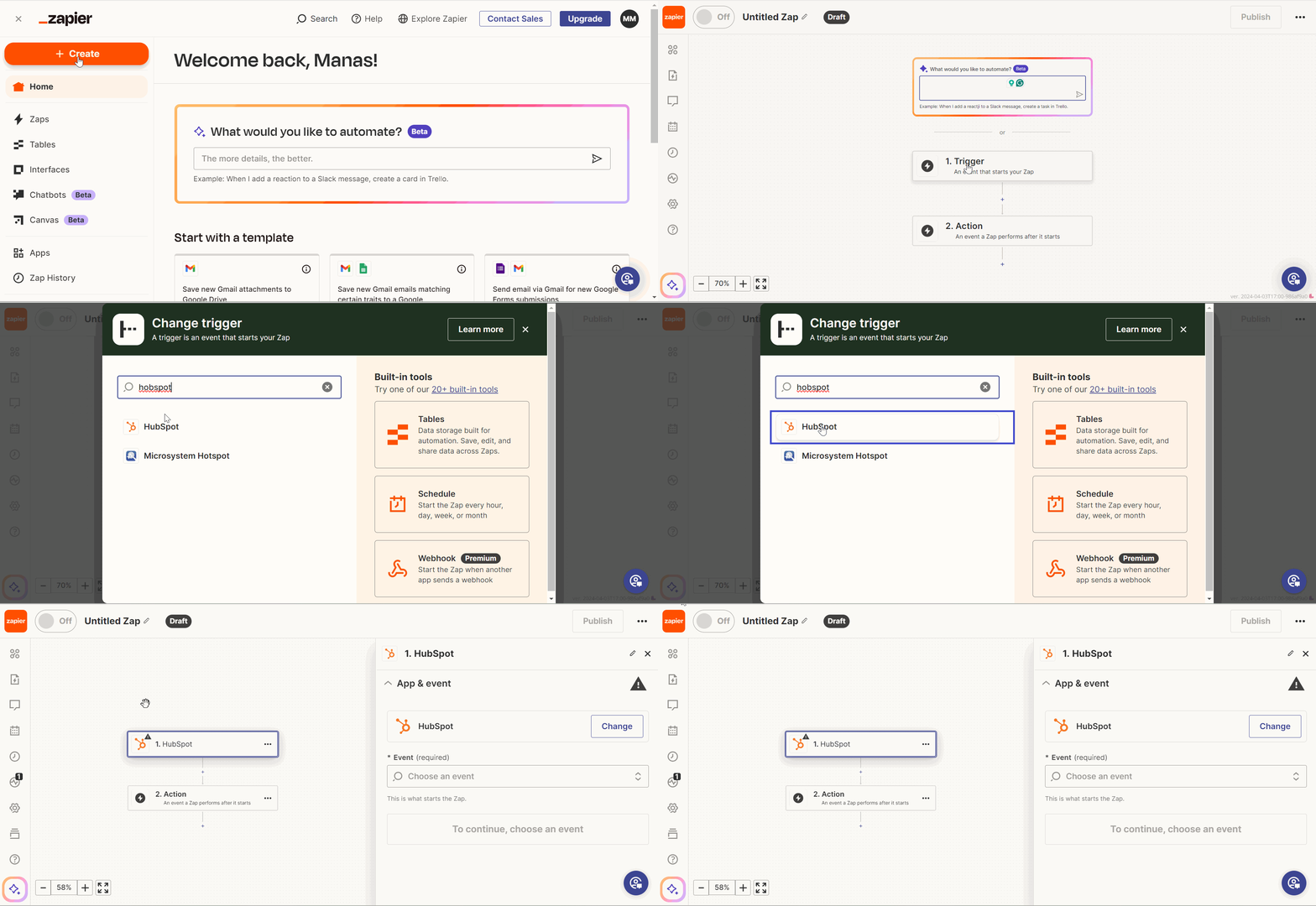
- In Zapier, navigate to "Create" -->” Zaps” and start creating your automation.
- Click on the top left corner (Untitled Zap) and type your “Zap Name”.
- Click on “Trigger” to set your trigger (means an event in HubSpot that starts your Zap)
- Search for "HubSpot" in the App search bar.
- Click on “HubSpot”.
3. Connect to Your HubSpot Account
- You'll need to connect your HubSpot account to Zapier.
- On the right-hand side, click on the “Search Box” to find the “Event”.
- Click on an event to select it (e.g., New Contact).
- Click on “Continue”.
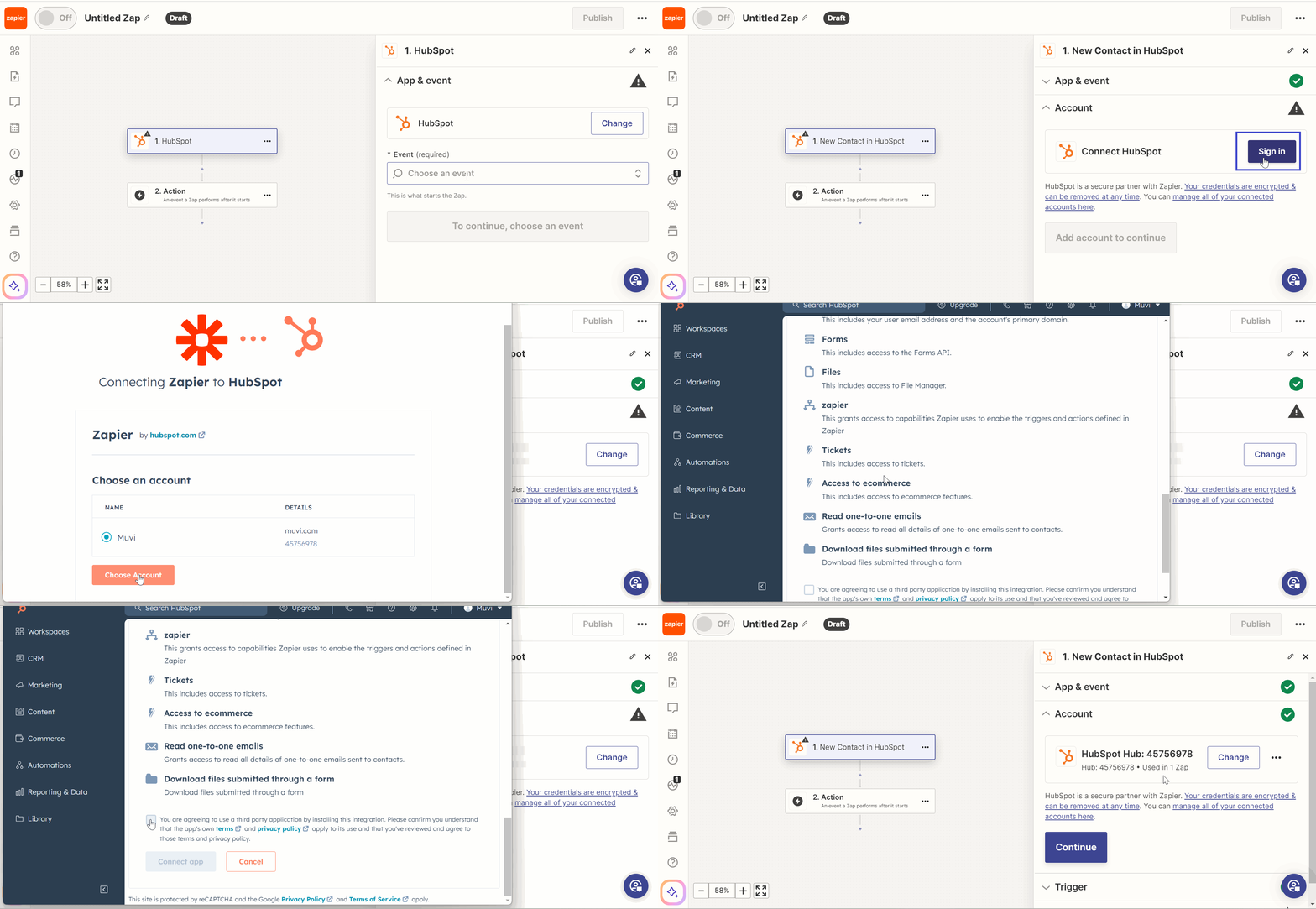
- Click on “Sign In” to connect to your HubSpot account.
- Select your HubSpot account.
- Click on “Choose Account”.
- Select the “Terms and Conditions” and then click on “Connect App”.
4. Choose a Trigger
- A trigger is the event in HubSpot that will start the automation.
- For example, you might want to trigger an action when a new content is added in HubSpot.
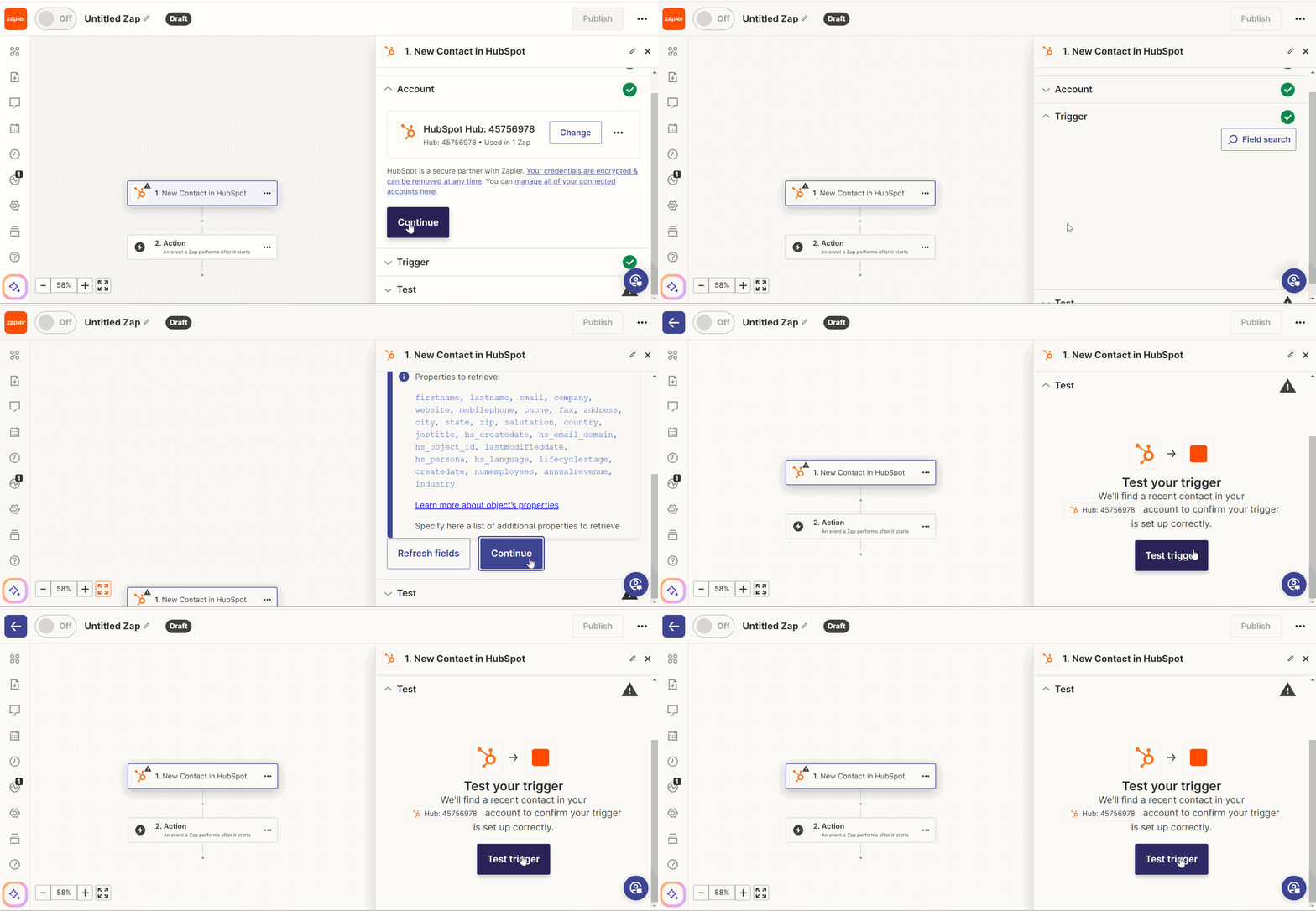
- Click on “Continue”.
- Then, click on “Continue”.
- Click on “Test Trigger” to test your trigger.
5. Set up Actions:
- Actions are the steps you want to take when the trigger event occurs.
- This could be adding a new registration in Muvi, adding a new subscriber to a Google Sheets spreadsheet, sending a personalized email through Gmail, etc.
- Click on “Action”.
- Search for the action app i.e., Muvi. When a new contact is added in HubSpot, a new user registration will be created in the Muvi One CMS.
- Click on “Muvi”.
- Select an “Event” (e, g., Create Registration).
- Click on “Continue”.
- Click on “Sign In” to sign in to your Muvi One account.
- Copy and paste the “App ID” and “Secret Key” from the Muvi One CMS.
- Click on “Yes, Continue to Muvi”.
- Click on “Continue”.
- Type the details in the required fields (e.g., Username, Password, Phone Number).
- Click on “Continue”.
- Click on “Test Step” to test the steps or you can “Skip Test”.
- Click on “Publish” to publish the “Zap”.
- When a new contact is added to the HubSpot, your Muvi One CMS will create a new registration.