0%
Adding Audio Content Using a Feed URL
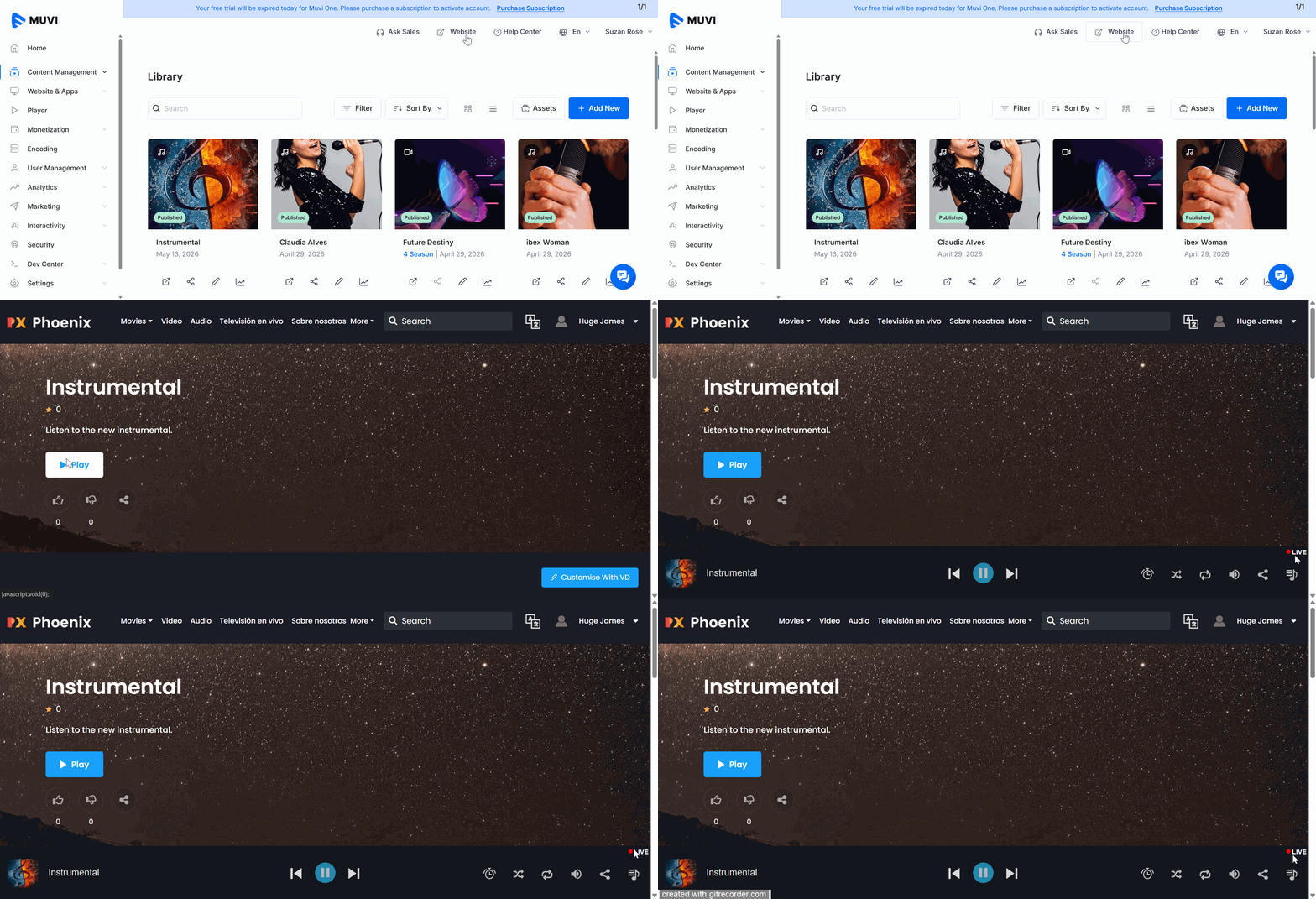
How to View the Content on the Frontend
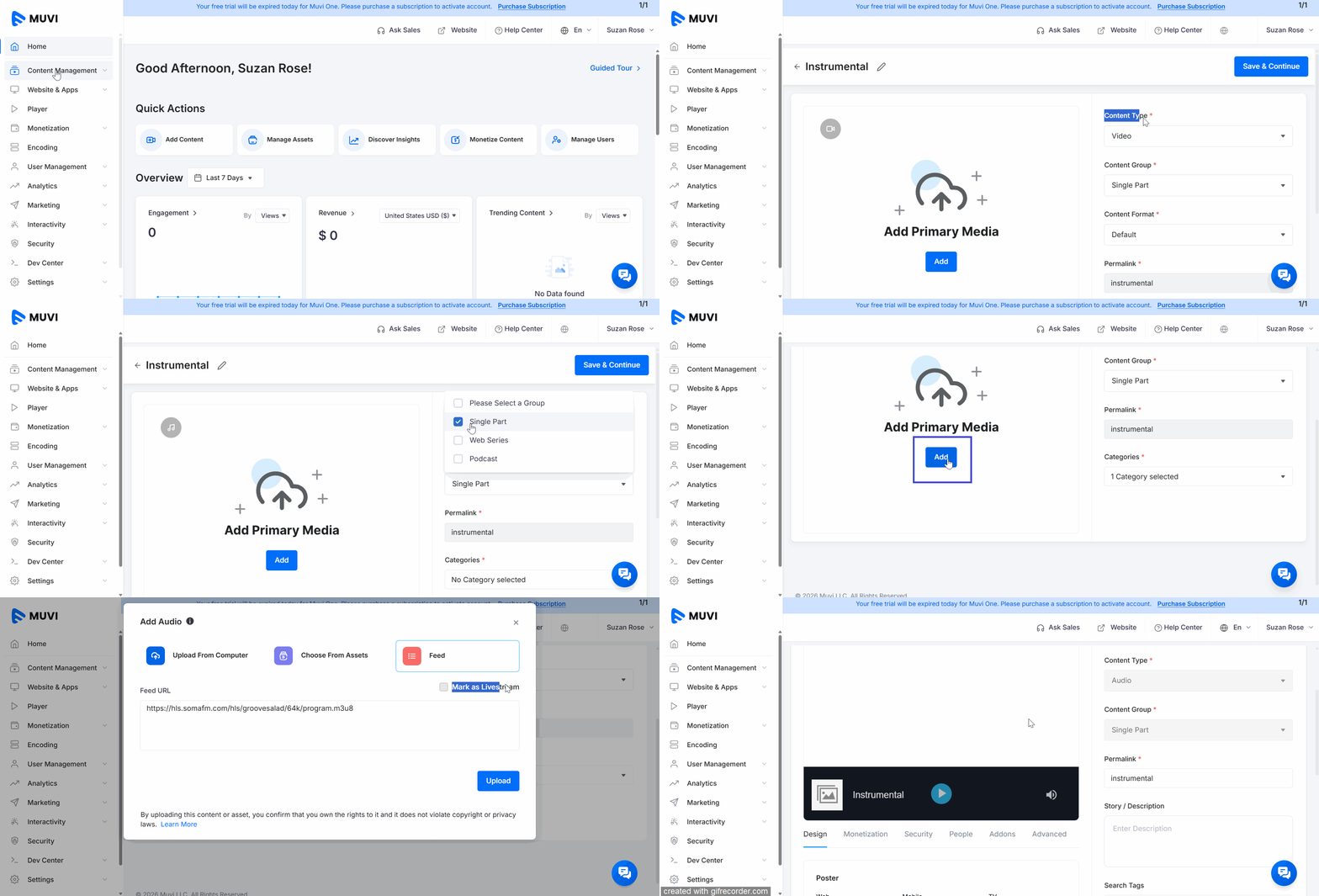
Muvi allows you to create audio content using external Feed URLs, including both HLS live audio feeds (.m3u8) and MP3 feeds. With this feature, you can use a feed URL as the primary media source for your audio content and stream it directly through the audio player in both the Dashboard and the front-end applications. You can also enable the “Mark as Livestream” option to activate live audio player functionalities for live streaming use cases.
Adding audio content is a 2-step process. In the first step, you can add the basic content metadata — including the content title, content type, group, categories, and sub-categories.
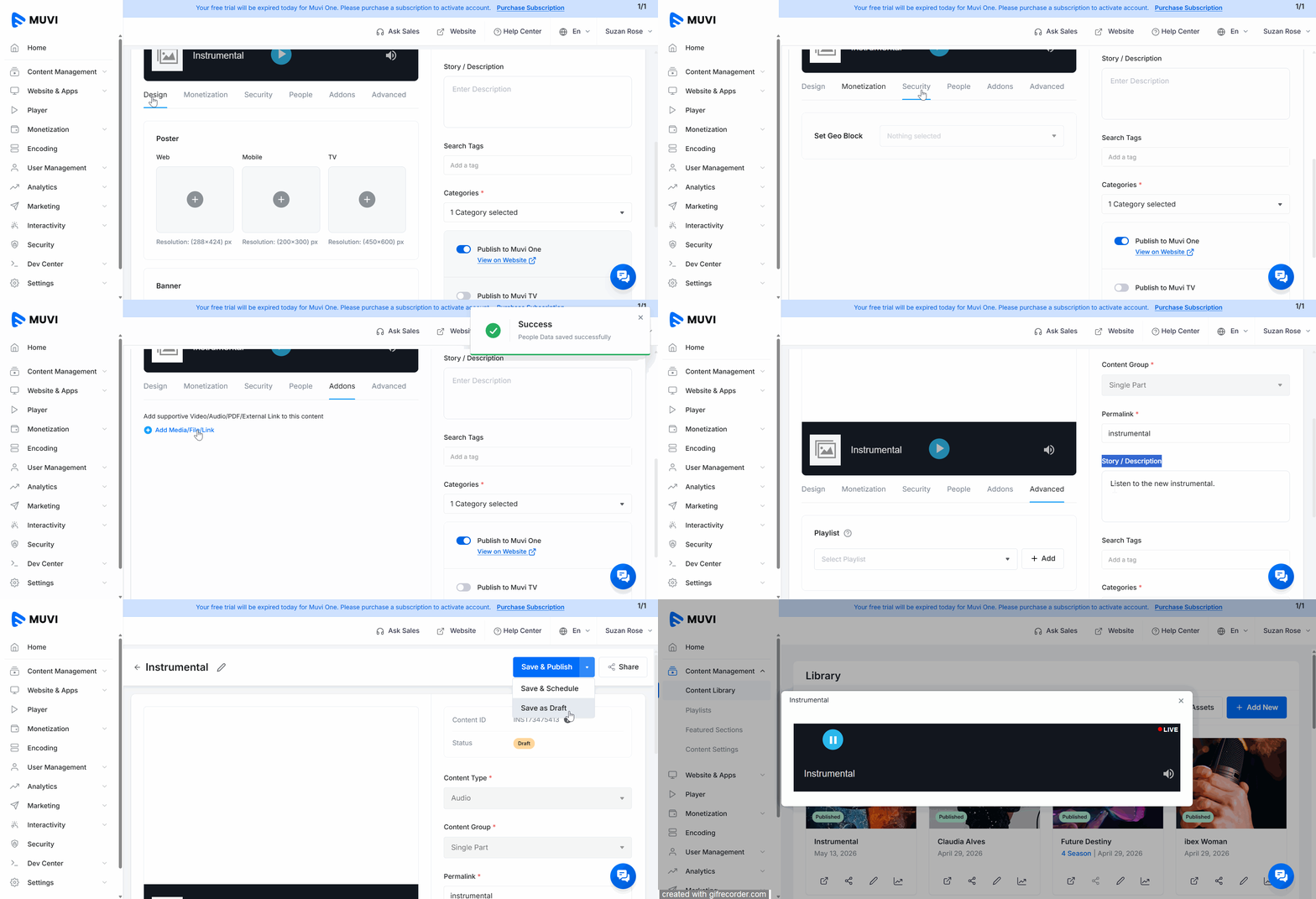
In the next step, you can enhance your content by adding a thumbnail, banner, cast and crew details, and configuring options like monetization, security, and more.
Step 1: Adding Basic Content Information
Step 2: Adding Media Assets and Additional Details
Once the audio content is created, you can enhance the content by adding a thumbnail, banner, cast and crew details, and configuring options like monetization, security, and more.
Adding Preview, Posters & Banners
Adding Monetization
Adding Security Features
Adding People (Cast & Crew)
Adding Addons (Video, Audio, PDF, External Links)
Adding a Playlist and Related Content
Adding Description & Search Tags
Saving & Publishing the Content
You can click on “Website” and view the content under a specific content category or featured section.
Let us know so that we can improve.
12:00AM PST
Most meeting platforms stop at video calls. Muvi Muvi Meet goes further—giving you a fully browser-based meeting experience that runs on your own domain, carries your brand, and…...
Event Language: EnglishReach out to Muvi at: