• Products
      • Products

        Build Streaming Platforms like Netflix, Udemy or Audible

        Live stream events, shows, tournaments on any device

        Host, publish, manage video, and audio files in one place

        Cloud playout software for linear TV & FAST channels

        New

        Video compliance checks and fixes with AI

        New

        Host branded video meetings on your platform

        Sell your individual videos online with pay-per-view instantly

        SDKs to deliver cutting-edge video, efficiently and on any device

        Test TV Apps on Real Smart TVs Remotely

        Alie AI Header

        Alie AI - World's First Streaming Focused AI Engine

        • ExamplesRight Arrow
        • Alie AI DemoRight Arrow
        • Ask SalesRight Arrow
        • Switch to MuviRight Arrow
    • Alie AI
        • Alie AI
          Built on Alie

          Video compliance checks and fixes with AI.

          World’s First Streaming Focused AI Engine
          Discover Alie
          AI Subtitles

          Auto‑generate video subtitles in primary language.

          AI Translations

          Translate subtitles instantly in 75+ languages.

          AI Recommendations

          Deliver tailored content recommendations.

          AI Metadata

          Smart fill meta titles, descriptions, tags & casts.

          AI Compliance

          Automate regulation checks and edits in one click.

          AI Dubbing

          Dub videos into languages your customers speak.

          AI Chaptering

          Split long videos & audio files into structured chapters.

          AI Clips

          Create clips, reels, social snippets and more in one click.

          AI Chat with Video

          Chat with videos to ask questions, brainstorm & more.

          View all AI FeaturesRight Arrow
          Demo Center
          Menu Image

          Experience Muvi products first hand by taking a quick demo.

          Learn moreRight Arrow
    • Pricing
    • Solutions
        • Solutions
          • Video Streaming (VOD)
          • Audio Streaming (AOD)
          • Live Streaming
          • Offline Streaming
          • Video Hosting Platform
          • Podcast Platform
          • Mobile & TV Apps
          • Meetings & Webinars
          • Online Video Platform
          • IPTV Solution
          • Live Events
          • Media & Entertainment
          • Sports
          • Healthcare
          • Health & Fitness
          • Tourism & Hospitality
          • Education
          • Religion
          • Judiciary
          • Enterprises
          • Film Festivals
          • Broadcasters
          • Government
          • Telcos
          • Finance
          • Beauty
          Web App
          • Website
          Casting
          • Chromecast
          • AirPlay
          • Apple Watch
          Mobile
          • iOS
          • Android
          • Mobile SDKs
          Others
          • Get Only Apps
          • Muvi Onyx
          • Muvi Blue
          TV
          • Roku TV
          • Android TV
          • Apple TV
          • Samsung TV
          • Fire TV
          • LG TV
          • VEWD TV
          • VIDAA OS TV
          • Astro TV
          • Netflix
          • YouTube
          • ESPN+
          • Udemy
          • Audible
          • Apple Music
          • Zoom Meetings
          • AVO TV
          • Calm
          • Shahid
          • Nebula
          • Pluto TV
          • beIN
          • Poppo Live
          • Rumble
          • TikTok
          • Reelshort
          • OnlyFans
          • Clubhouse
          • Clipclaps
          • Google Podcast
          • Fanhouse
          • OnlyFans TV
          • Spotify
          • Bigo Live
          • Whatnot
          • Hulu
          • Tango
          • Equinox
          • Cerebral
          • Masterclass
          • Twitch
          • Curiosity Stream
          • WorldStarHipHop
          • Baller TV
          • TinyZone
          • BXNG
          • Dramabox
          • Boomplay
          • Blinkist
          • Seekho
          • UpScrolled
          • Featured Solutions
          • On-premise
          • Short Videos
          • eLearning
          • FAST
    • Help
        • Help
          Help & Support
          • Help Center
          • Community
          • Support Plans
          • Wiki
          • Migrate to Muvi
          Services
          • CMS Management
          • End-User Support
          • Design & Visuals
          • Product & UX Consulting
          • Professional Services
          • Critical Events Support
          Resources
          • Resource Center
          • Blogs
          • Events & Webinars
          • Case Studies
          • Product Updates
          • Free Tools
          Developers
          • APIs
          • SDKs
          • BYOD
          • Webhook
    • Company
        • Company
          Company
          • About Us
          • Newsroom
          • Compliances
          • Awards & Recognition
          • Muvi Academy
          • Contact Us
          • Ask Sales
          Partners
          • Partnership Program
          • Partner Portal Login
          • Find a Partner
          • Integrations
          • Become a Partner
          • Affiliate Program
          CareersRight Arrow
          Muvi Foundation
          Menu Image

          An inspiration, to strengthen, to help, to empower our entire community.

          Learn moreRight Arrow
    Login
    Free Trial
     
    Create a ticket
    Help Articles Content Management Editing Content
    Table of Content
    • Introduction
    • Editing Metadata
    • Remove/Upload Preview or Trailer
    • Change/Remove Top Banner
    • Change Video
    • Remove/Add Cast or Crew

    Editing Content

    Introduction

    As per your requirement, you can edit any content in the Content Library in your CMS. You can edit all content metadata including, Content Name, Content Category, Genre, Record/Release date, Story/Description, etc., and even you can change the posters. The “Edit” feature also allows you to Remove/Change the Preview or Trailer of a movie or TV show, Change/Remove the Top Banner, and Remove/Add Cast or Crew.

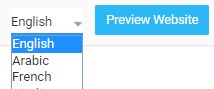
    Note:  If you have configured multiple languages on your store, then you will be able to edit the different sections of the content (i.e. add/edit Poster, add/edit Trailer, add/edit Top banner, etc.) when the English language is selected in the CMS.  (See Below Screenshot)
    Editing Metadata

    • To edit content metadata, go to “Manage Content” --> “Content Library” in your CMS
    • On the Content Library page, you can see all your content. To edit a specific content, click on “Edit” on the right-hand side of the content, under “Action” (See Below Screenshot)

    Note:  If you have configured multiple languages on your store, then you will be able to select the "Content Category" when the English language is selected in the CMS.  (See Below Screenshot)

    • In the “Edit Content” page, edit the content metadata (Content Name, Content Permalink,  Language, Release/Record date, etc. )
    • Here you can also change the poster of the content.
    • Lastly, click on “Update Content”. Your content will be modified.

    Remove/Upload Preview or Trailer

    You can remove the preview/trailer of specific content (If you have already uploaded a preview). After removing the existing preview, you can upload a new preview for the content.

    • To remove Preview, go to “Manage Content” --> “Content Library” in your CMS
    • On the Content Library page, you can see all your content. Click on “Edit” on the right-hand side of the content.
    • On the “Edit Content” page, scroll down to the “Preview” section.
    • Click on “Change Video”.
    • A window will popup. Here you will see 3 options to upload a preview.
    • Click on “Upload File” if you want to upload the video from your computer. When asked for confirmation, click on “Upload”. The video file will be uploaded and start encoding. When the encoding will be finished, you will able to see the preview.
    • Click on “Choose from Library” if you want to select the preview video from your Video Library. Select the video and it will start encoding.
    • Click on “Embed from 3rd Party”, if you want to embed a 3rd party video link (YouTube, Vimeo, or link from another online video platform) for the preview. When you embed 3rd party link there will be no encoding. You can watch the trailer instantly. To know how to obtain 3rd party video link please Click Here.
    • To preview the trailer, click on "Preview Video".
    • You can also remove the preview by clicking on the "Remove" button. When asked for confirmation, click on "Yes" to remove the preview/trailer.

    Note:  If you have configured multiple languages on your store, then the "Remove" button in the preview section is visible when the English language is selected in the CMS.  (See Below Screenshot)

    • Once the trailer is uploaded, your users can see the “View Trailer” button. When they click on that button they can see the trailer of the content.

    Note: You can click on the back button "<---" of the browser or back button of the player to go back to the previous page. 

    Change/Remove Top Banner

    If top banner is already added then you can Change/Remove the banner.  

    • To change the top banner of a content, go to go to “Manage Content” -->“Content Library” in your CMS
    • In the Content Library page, you can see all your content. Click on “Edit” on the right-hand side of the content.
    • In the “Edit Content” page, scroll down to “Top Banner” section.
    • Click on “Change Banner”
    • You can upload banner for "Website" (size 1200x350 px), "Mobile Apps" (size 1600x900 px) and "TV Apps" (size 1920x1080 px). You cannot edit the top banner size for mobile apps and TV apps. However, you can edit the top banner size for the website. Click here to know how to change the size of the top banner for website. 
    • You can select banner from the gallery or from your computer. Select the image and then resize it. Finally, click on “Save”.
    • To remove a top banner, click on "Remove Banner" button. When asked for confirmation, click on "Yes" to remove the banner. 

    Note: If you have configured multiple languages on your store, then "Change Banner" and "Remove Banner" button is visible when English language is selected in the CMS. (See Below Screenshot)


    • Once the banner is uploaded for the content, it will look like the following screenshot.


    Change Video

    You can only change the video which is already mapped to the content. However, the video can not be removed that is mapped to the content.

    • To change the video, navigate to "Manage Content" -->" Content Library" in the CMS.
    • Click on "Change Video" for the content you want change the video.
    • Select the video from the "Video Library" that you want to map with the content.
    • The video once mapped will be encoded and then the end-users can view it on the front-end

    Remove/Add Cast or Crew

    If Cast/Crew is already added, then first remove the Cast/Crew information and then add the new Cast/Crew information.

    • To remove Cast/Crew, go to go to “Manage Content” --> “Content Library” in your CMS
    • On the Content Library page, you can see all your content. Click on “Edit” on the right-hand side of the content.
    • In the “Edit Content” page, scroll down to the “Cast and Crew” section
    • Click on “Remove" when asked for confirmation, click on "Yes"


    After removing the Cast/Crew information, you can add new Cast/Crew information. 

    • To add Cast/Crew for a content, go to go to “Manage Content” --> “Content Library” in your CMS
    • In the Content Library page, you can see all your content. Click on “Edit” on the right-hand side of the content.
    • In the “Edit Content” page, scroll down to “Cast and Crew” section
    • Click on “Add New Cast”
    • Type the Cast/Crew Name and select Cast/Crew Type from the drop-down list
    • Finally, click on “Add”. To add another Cast/Crew member, please repeat the process. (To know more about how to manage Cast/Crew please Click Here)


    • Once you added the Cast/Crew it will look like the following screenshot.


    Was this article helpful?
    Yes
    No
    Let us know so that we can improve.

    Your email address will not be published. Required fields are marked *

    Next

    User Action Analytics Report

    Ask the Community

    Our super friendly community helpers are on hand to help out ask away. They can help with almost anything.

    Products
    • One
    • Live
    • Flex
    • Playout
    • TrueComply
    • Muvi Meet
    • TV
    • Player
    • TV Lab
    Products
    • One
    • Live
    • Flex
    • Playout
    • TrueComply
    • Muvi Meet
    • TV
    • Player
    • TV Lab
    Company
    • About Muvi
    • Careers
    • Awards & Recognition
    • Global Compliances
    • Price Match
    • Legal Policies
    • Muvi Foundation
    • Muvi University
    • Contact Us
    • Ask Sales
    Solutions
    • OTT Platform
    • Video on Demand
    • Live Streaming Platform
    • Enterprise Video Platform
    • Video Hosting Platform
    • Short Video Platform
    • Online Video Platform
    • SVOD Platform
    Services
    • CMS Management Services
    • End-User Support Services
    • Design Services
    • Product & UX Consulting
    • Muvi Professional Services
    • Critical Events Support
    Resources
    • Blogs
    • Events & Webinars
    • Whitepapers
    • Case Studies
    • Free Tools
    • Build vs Buy Calculator
    Help and Support
    • Help Center
    • Community
    • Support Service
    • Partner Program
    • Find a Partner
    Developers
    • APIs
    • SDKs
    • BYOD
    • Webhook
    Developers
    • APIs
    • SDKs
    • BYOD
    • Webhook
    • 42241 Violet Mist Terrace, Ashburn, VA 20148
    • sales@muvi.com
    • +1-860-973-0083 (USA)

    Copyrights ©2025 Muvi LLC | Leading the streaming revolution since 2010